.png)


Cavaco AI helps you optimize your creative assets across paid advertising, on-site widgets, and email/SMS campaigns. The platform leverages AI-powered content generation, platform-native responsive algorithms, and multi-step drip flows to ensure the best-performing creative reaches each audience segment.
1. Paid Ads: Responsive Creatives
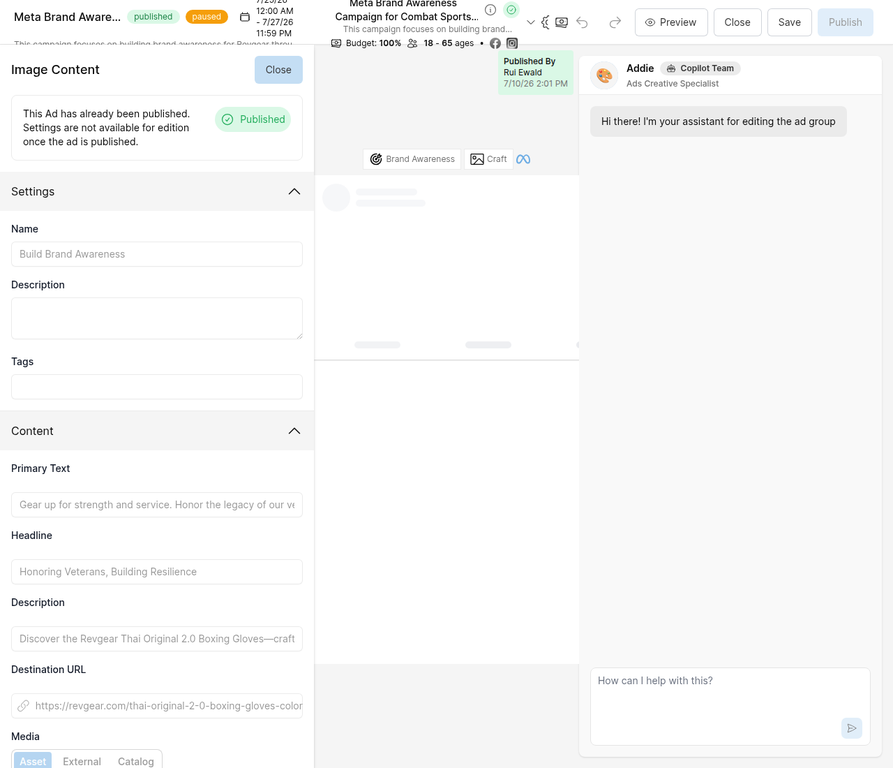
When building advertising campaigns in Cavaco, you can provide multiple creative elements — headlines, descriptions, primary text, and media assets — within a single ad group. The advertising platform (Meta, Google, or ChatGPT Ads) then assembles and serves the highest-performing combination for each individual user.
How It Works
- Multiple Headlines: Write 3–5 headline variations. The algorithm tests which resonates best with different audience segments.
- Multiple Descriptions: Provide several description options that highlight different value propositions (e.g., free shipping vs. product quality vs. urgency).
- Media Variants: Upload multiple images or videos. The platform will rotate them and identify which visual drives the highest engagement.
- AI-Assisted Generation: Use the Copilot assistant directly in the campaign editor to generate additional copy variants. Simply type a request like "Write 3 more headline options with an urgent tone" and the AI will produce them instantly.
This approach eliminates the need to create separate ad sets for each creative variation. The platform handles optimization automatically, allocating more impressions to winning combinations over time.
2. On-Site: Widget Personalization Variants
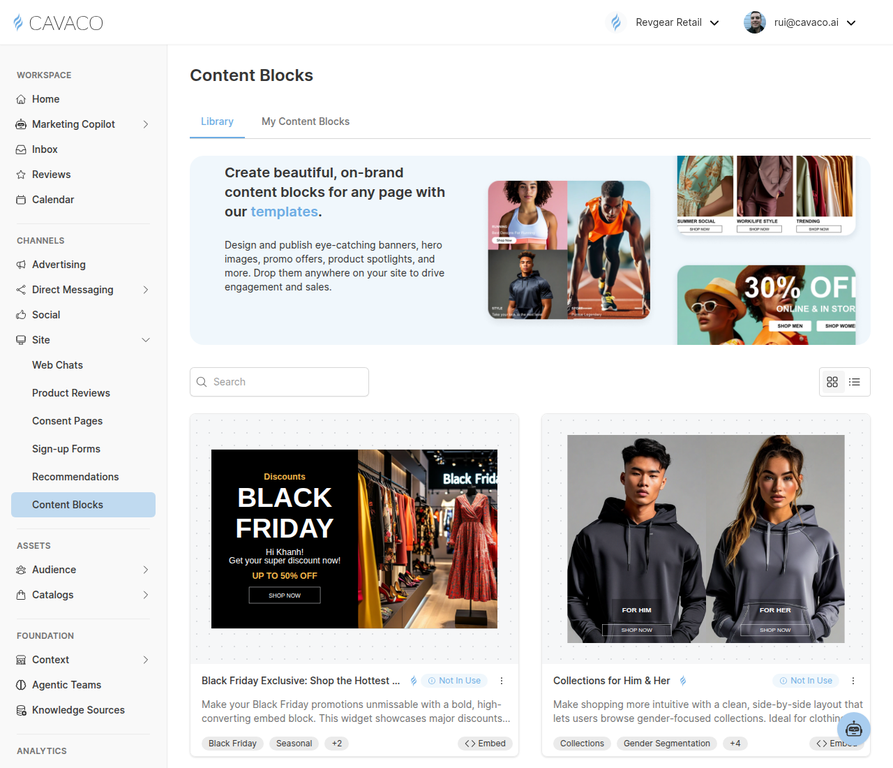
Cavaco's on-site widgets (Content Blocks, Sign-up Forms, Recommendations, and Product Reviews) support audience-driven personalization. Instead of showing the same banner or popup to every visitor, you can create multiple variants targeted to different customer segments.
Types of On-Site Variants
- Content Blocks: Create different hero banners, promotional offers, or product spotlights for different audiences. For example, show a "Welcome Back" offer to returning customers and a "First Order Discount" to new visitors.
- Sign-up Forms: Customize the messaging and incentive based on visitor behavior — exit-intent popups for cart abandoners vs. scroll-triggered forms for engaged readers.
- Product Recommendations: Display personalized product suggestions based on browsing history, purchase patterns, or segment membership.
How to Create Widget Variants
- Navigate to Site in the left sidebar and select the widget type (e.g., Content Blocks).
- Choose a template from the Library or build from scratch.
- In the widget editor, configure the Targeting Rules to define which audience segment sees this variant.
- Create additional variants with different content and targeting rules for other segments.
- Publish all variants — Cavaco will automatically serve the correct version to each visitor based on their segment membership.
3. Email & SMS: Multi-Template Drip Flows with Smart Sending
Cavaco's email and SMS capabilities center around multi-step drip campaigns, a rich template library, and intelligent sending controls. You build automated flows that deliver a sequence of tailored creative variants over time — each template designed for a specific moment in the customer journey — while Smart Sending ensures messages only reach recipients at the right time.
Copilot-Generated Templates
The Marketing Copilot can generate complete email and SMS templates from a natural-language prompt. When creating templates, you have two AI-assisted options:
- Build with Copilot: Describe what you need (e.g., "a post-purchase review request with a warm community tone") and the Copilot generates a fully designed template in seconds.
- Pre-Generated by Copilot: The Marketing Copilot proactively creates template suggestions based on your brand context and campaign goals. Review them in the Actions panel and approve with a single click.
Template Library & Personalization
Both email and SMS templates support personalization variables that dynamically insert customer-specific data:
- Personalization variables: Use Liquid-style tags like
{{ user.first_name }}and{{ product.url }}to personalize each message for the recipient. - Template types: Choose from Sales, Reminders, Outreach, Confirmation, and Deals templates — each pre-structured for its specific use case.
- SMS layout options: Select between text-only messages and image-enhanced SMS for richer engagement.
- Library adaptation: Browse the template library and adapt proven templates to your brand using the Copilot, rather than starting from scratch.
Multi-Step Drip Campaigns
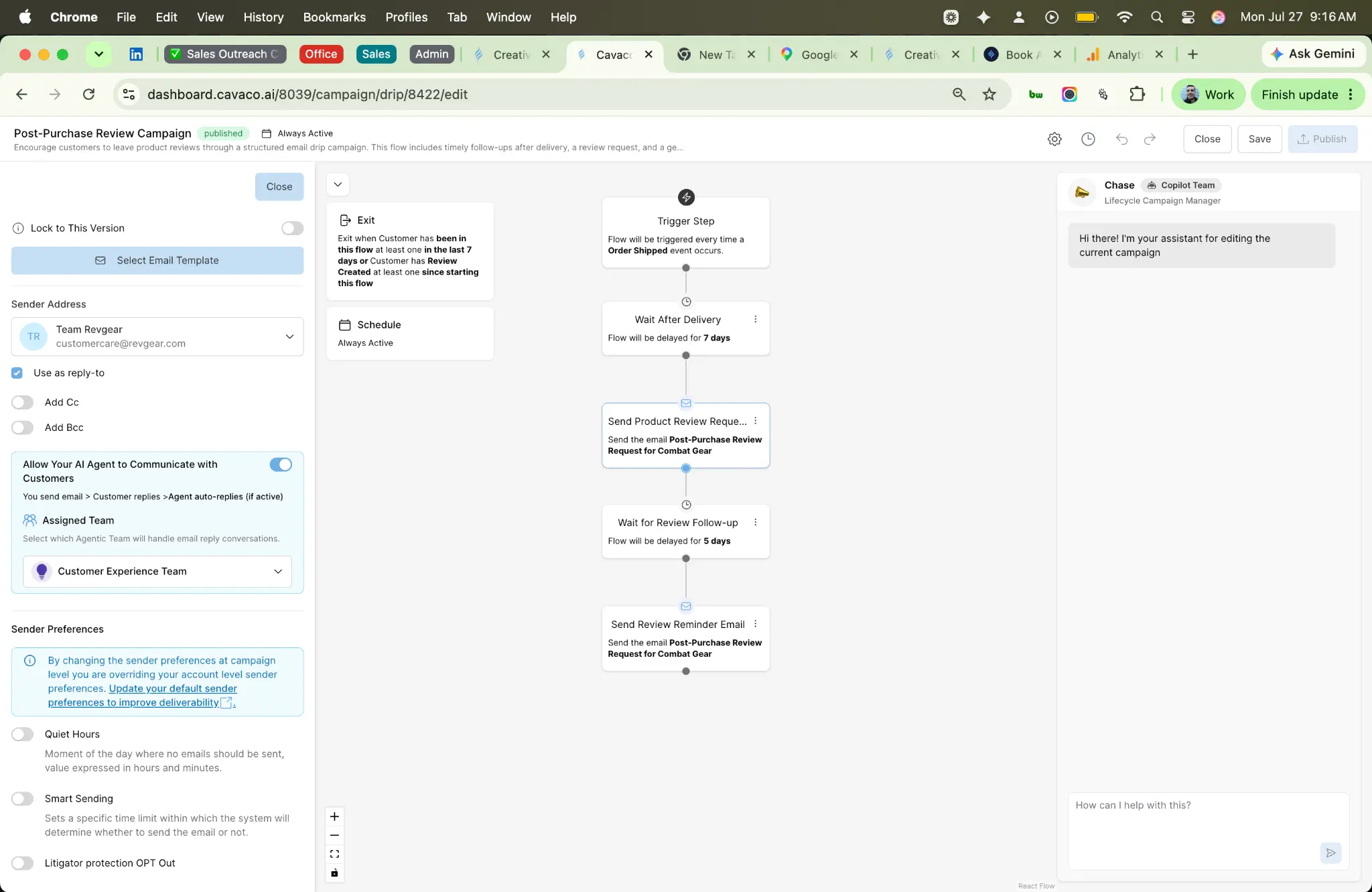
Drip campaigns let you sequence multiple email and SMS templates into automated flows triggered by customer behavior:
- Behavioral triggers: Start flows based on events like Order Shipped, Product Added to Cart, Product Viewed, or when a customer is added to a list.
- Timed delays: Configure wait steps between messages (hours or days) with optional time-of-day windows.
- Exit conditions: Define when a customer should exit the flow — for example, "Exit when Customer has been in this flow at least once in the last 7 days" or "Exit when Customer has Review Created since starting this flow."
- Multiple creative touchpoints: Each step in the flow uses a different template, allowing you to vary your messaging across the sequence — for example, a warm welcome email followed by a product recommendation, then a personalized offer.
- Cross-channel flows: Combine email and SMS templates in the same drip campaign for multi-channel engagement.
Sender Preferences & Smart Sending
Each drip campaign includes sender-level controls that optimize delivery timing and protect your sender reputation:
- Smart Sending: Sets a specific time limit within which the system will determine whether to send the email or not. This prevents over-messaging by ensuring customers don't receive too many emails within a short window.
- Quiet Hours: Define moments of the day where no emails should be sent (expressed in hours and minutes), ensuring messages arrive during appropriate times.
- AI Agent Communication: Enable your AI Agent to communicate with customers after the initial send — the flow is: you send email → customer replies → AI Agent auto-replies (if active). Assign a specific Agentic Team to handle reply conversations.
- Litigator Protection OPT Out: Compliance control to exclude known litigator contacts from receiving messages.
4. AI-Powered Optimization: The Insight Assistant
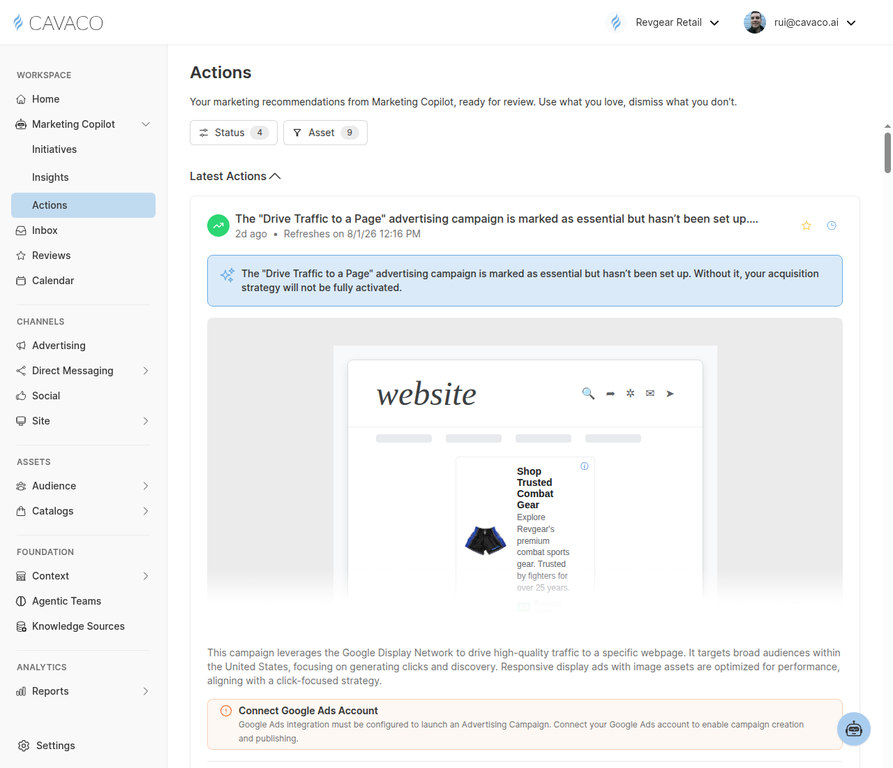
Beyond the channel-specific features above, Cavaco's Marketing Copilot continuously monitors your campaign performance and proactively suggests new creative variants and optimizations.
How the Insight Assistant Helps
- Proactive Recommendations: The AI identifies underperforming campaigns and suggests specific improvements — new headlines, different audience targeting, or alternative creative approaches.
- One-Click Activation: Each recommendation comes with Approve and Dismiss buttons. Approve to instantly apply the suggestion, or dismiss to skip it.
- Continuous Learning: As you approve or dismiss suggestions, the AI learns your preferences and refines future recommendations accordingly.
Related articles
- Creating and Managing ChatGPT Ads — Learn all 4 methods for creating ChatGPT advertising campaigns.
- Creating Google Ads Campaigns — Set up and launch Google Ads campaigns with responsive display creatives.
- Creating Meta (Facebook & Instagram) Ad Campaigns — Build Meta campaigns with carousel, video, and responsive formats.
- Installing and Configuring Site Widgets — Learn how to set up on-site widgets with targeting rules.
- Understanding the Marketing Copilot — Discover how the AI assistant works across all channels.
- Understanding Agentic Teams — Learn how reusable teams, members, schedules, and audience routing support customer-facing automation.
- How Cavaco Works with Organic Social Posting — Create and publish Facebook, Instagram, and X content with Copilot or from scratch.
- Setting Up Social Auto Replies with Agentic Teams — Assign a team and automate supported DMs, comments, mentions, and replies.
- Connecting Organic Social Channels — Connect current Facebook, Instagram, and X accounts, including Meta business prerequisites.
.png)