.png)


Use Audience > Leads to bring an existing contact file into Cavaco. The process has two required stages: first upload the file as a Dataset, then create an Ingest that moves the data into Cavaco’s customer system.
Important: Uploading a lead file does not by itself add contacts to Profiles or a campaign list. After the dataset upload finishes, open the dataset, click New Ingest, choose an ingest mode, and wait for the ingest status to become Succeeded.
1. Understand the Two-Step Lead Import Workflow
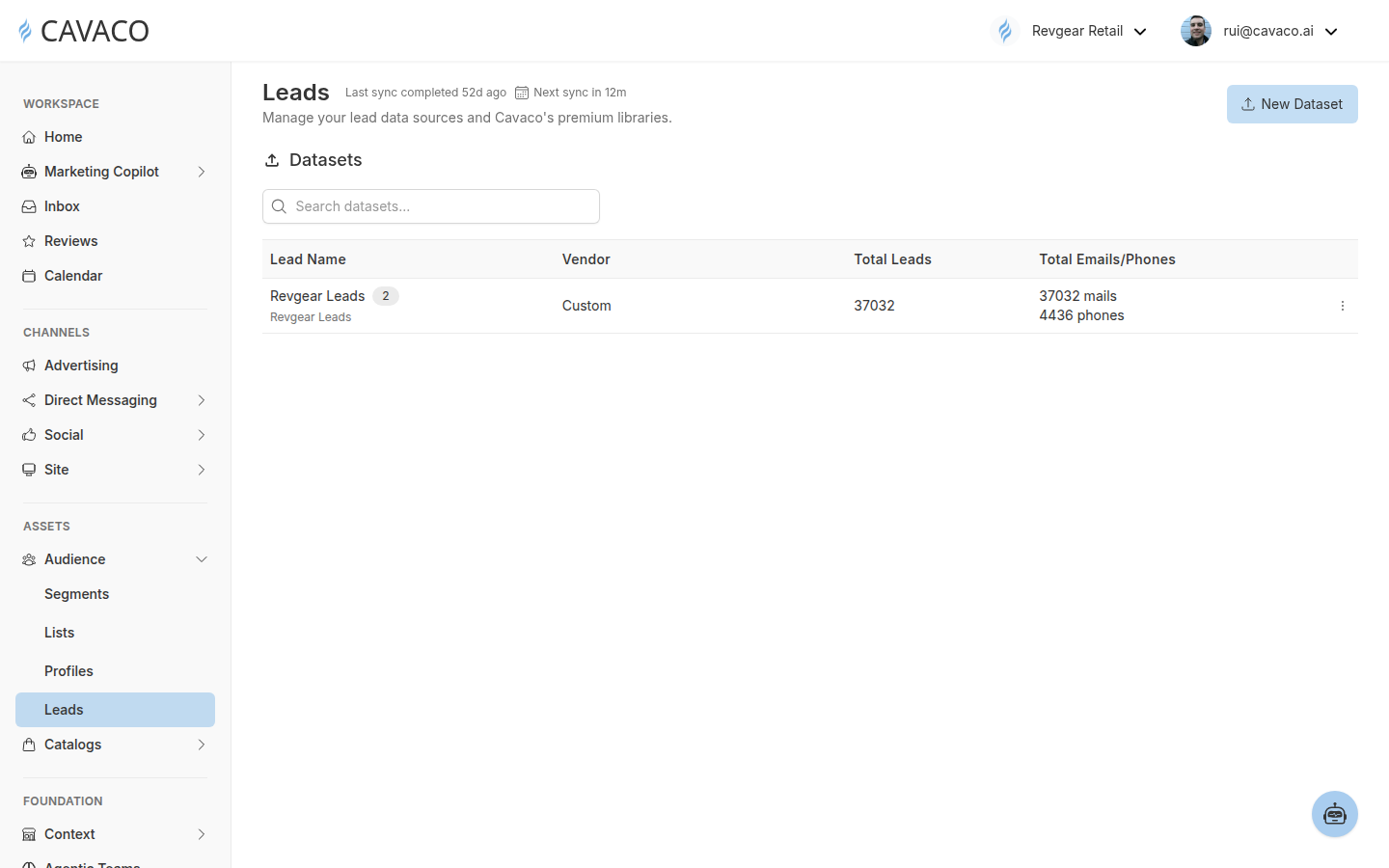
A Dataset is the uploaded source file. It stores the rows and mapped fields that Cavaco can process, but it is not yet a usable campaign audience and it has not yet completed profile ingestion.
An Ingest tells Cavaco what to do with that dataset. Depending on the mode you select, Cavaco can create email-list membership, create phone-list membership, or merge mapped lead attributes into customer profiles.
The complete workflow is:
- Prepare and upload a lead file as a Dataset.
- Open the uploaded Dataset.
- Click New Ingest.
- Select how the data should be used.
- Create the ingest and wait for Succeeded.
- Verify the results in Audience > Profiles or Audience > Lists.
2. Upload and Map Your Lead Dataset
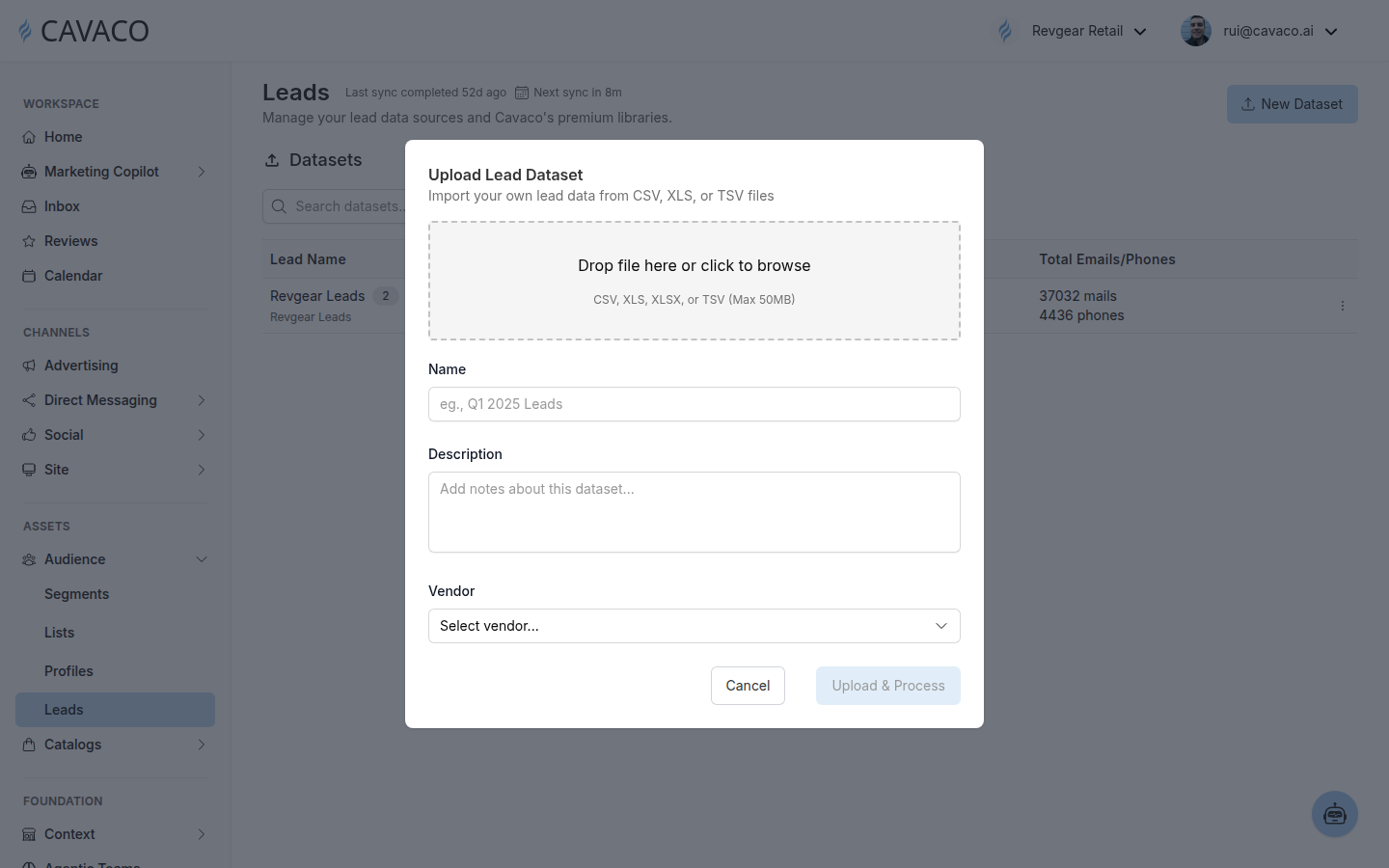
Navigate to Audience > Leads and click New Dataset. Add your file, enter a recognizable name, optionally add a description, and choose the source under Vendor.
Cavaco currently accepts CSV, TSV, XLS, and XLSX files up to 50 MB. The first row must contain column headers, and at least one row must contain a valid email address or phone number.
If your source is Salesgenie or Apollo, select that vendor to use its predefined mapping. For other sources, select Custom and map the file’s columns to Cavaco attributes. A custom mapping must include at least one identifier: email or phone. Map any additional fields you want Cavaco to use, such as first name, last name, or other customer attributes.
Click Upload & Process. This creates and processes the Dataset only. You must still create an ingest before the records become available in Profiles or Lists.
3. Create the Required Ingest
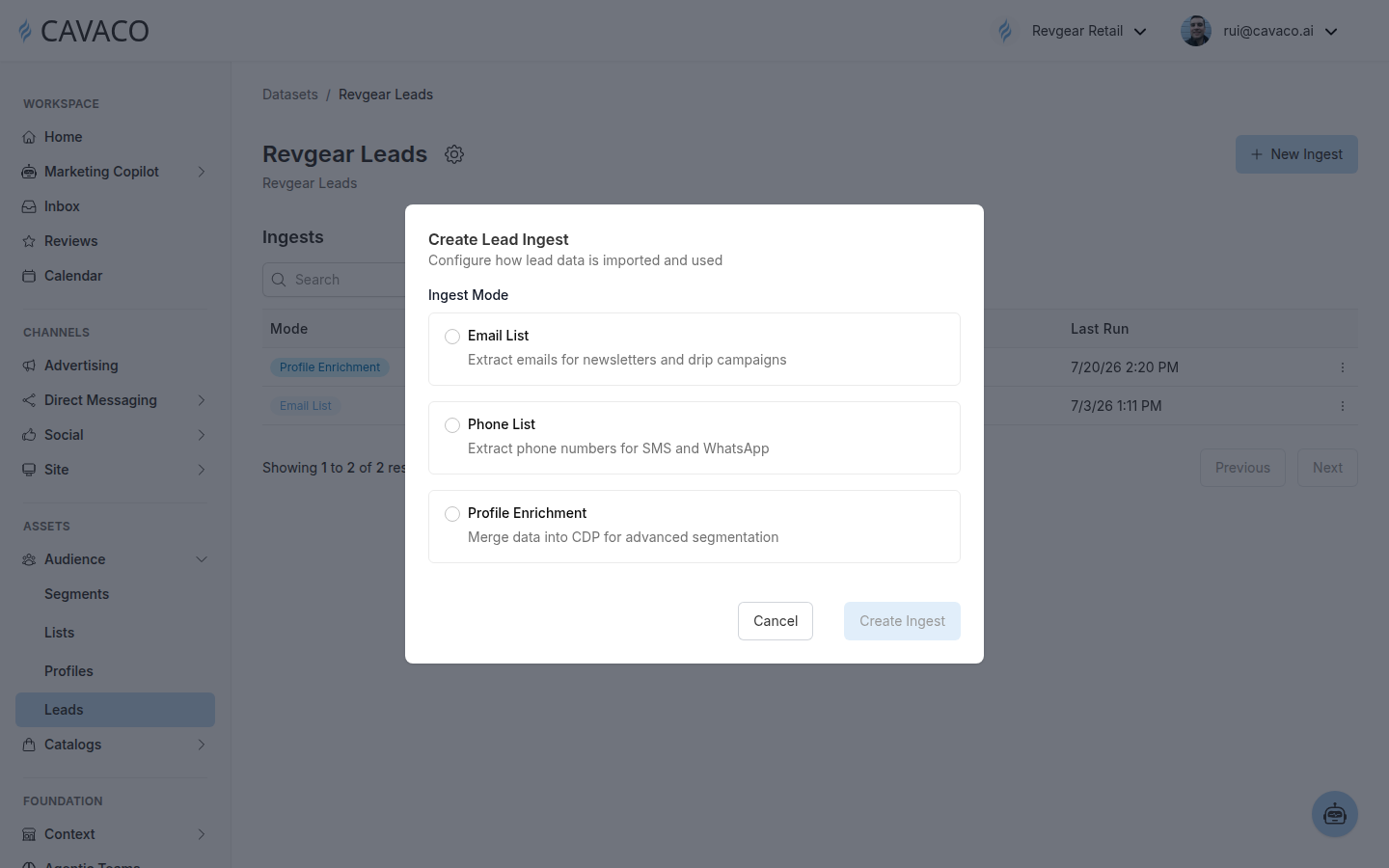
After the dataset appears on the Leads page, open it and click New Ingest. Choose the mode that matches how you want Cavaco to use the data.
| Ingest mode | What it does | Where to verify the result |
|---|---|---|
| Email List | Extracts mapped email addresses and assigns them to an existing or newly created list for newsletters and drip campaigns. | Audience > Lists |
| Phone List | Extracts mapped phone numbers and assigns them to an existing or newly created list for SMS and WhatsApp. | Audience > Lists |
| Profile Enrichment | Merges the dataset’s mapped fields into Cavaco customer profiles for segmentation and personalization. The current profile-ingestion workflow requires an email value; rows without an email are skipped. | Audience > Profiles |
For Email List or Phone List, select an existing destination list or choose Create New List and enter a list name. For Profile Enrichment, no destination list is required. Click Create Ingest to queue the job.
Need both a campaign list and fully enriched profiles? Create the appropriate list ingest and a separate Profile Enrichment ingest from the same Dataset. Each ingest has a distinct purpose and status.
4. Verify the Ingest and Find Your Contacts
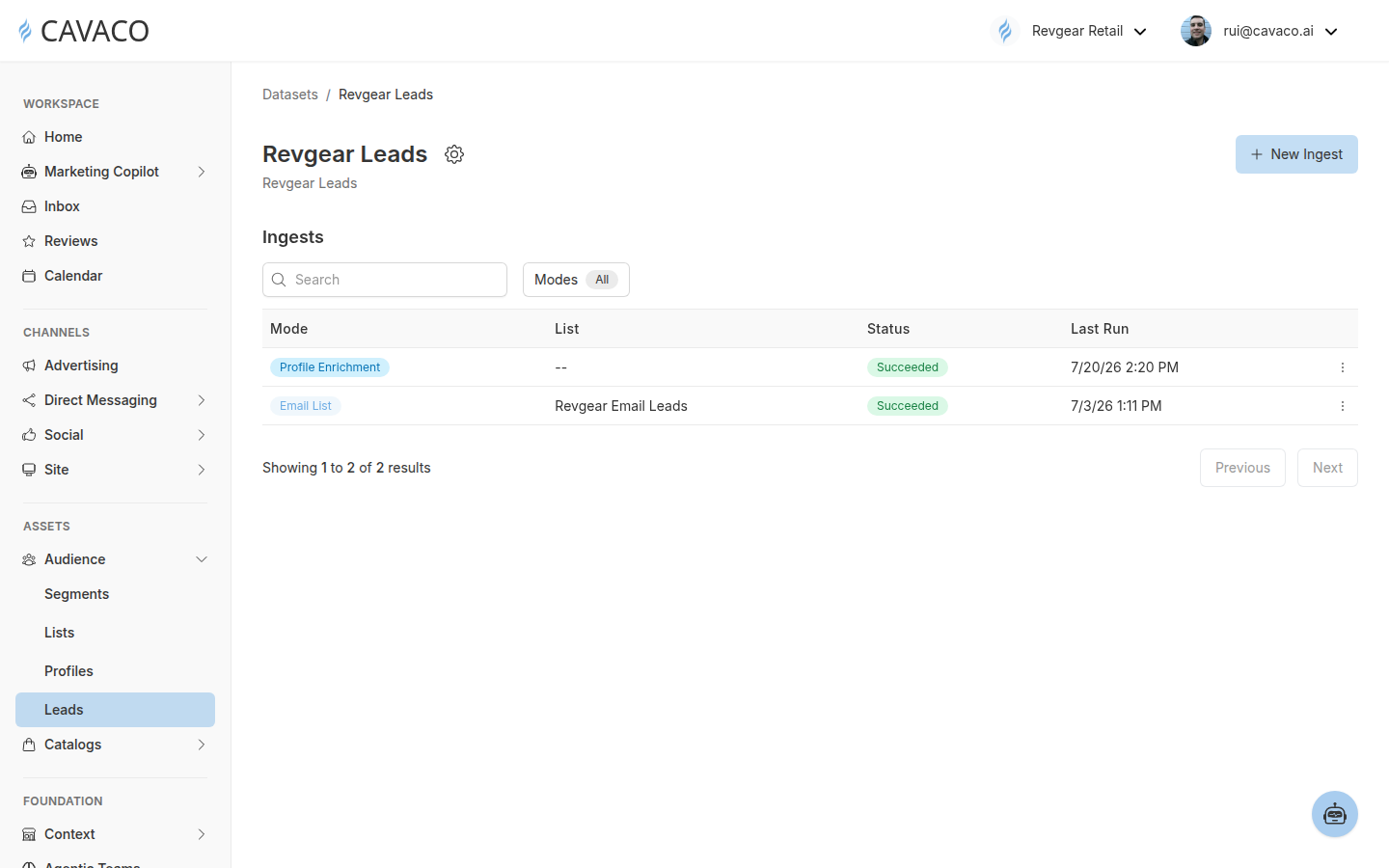
After you create an ingest, Cavaco queues and processes it in the background. Stay on the dataset’s Ingests view and check the Status and Last Run columns.
| Status | Meaning |
|---|---|
| Queued | The ingest has been created and is waiting to run. |
| Processing | Cavaco is reading the dataset and applying the selected ingest mode. |
| Succeeded | The ingest completed. Verify profile enrichment in Audience > Profiles or list membership in Audience > Lists. |
| Failed | The ingest did not complete. Check the dataset mapping and required identifiers, then create a corrected ingest. |
If your uploaded file appears under Leads but its contacts do not appear in Profiles or Lists, first open the Dataset and confirm that an ingest exists. A successful dataset upload without a subsequent ingest is the most important distinction in this workflow: the source file is present, but Cavaco has not yet moved the records into the selected destination.
.png)