.png)


Connecting your Google Ads account to Cavaco AI lets you launch Search and Performance Max campaigns using your first-party customer data — and see Google-attributed revenue alongside email and SMS in one place.
What the Integration Enables
| Capability | What it means for you |
|---|---|
| Campaign creation & management | Launch, edit, pause, and monitor Google campaigns directly from Cavaco |
| Customer Match audiences | Your Cavaco segments are uploaded to Google as Customer Match lists, enabling bid adjustments and exclusions based on purchase history and behaviour |
| Performance Max support | Run full-funnel campaigns across Search, Display, YouTube, and Shopping from a single campaign type |
| Revenue attribution | Google-attributed conversions appear in the same Cavaco reports as email and SMS revenue |
Before You Start
To use Customer Match (the feature that lets you target your own customers on Google), your Google Ads account must meet Google's eligibility requirements:
- Good account standing with no policy violations
- A history of compliance with Google's policies
- At least $50,000 USD in total lifetime spend (or equivalent in local currency)
If your account doesn't yet meet these thresholds, you can still connect and run standard Search and Performance Max campaigns — Customer Match targeting will become available once your account qualifies.
Step-by-Step Setup
Step 1: Open Integrations
In the Cavaco dashboard, navigate to Settings → Integrations and click + New Integration.
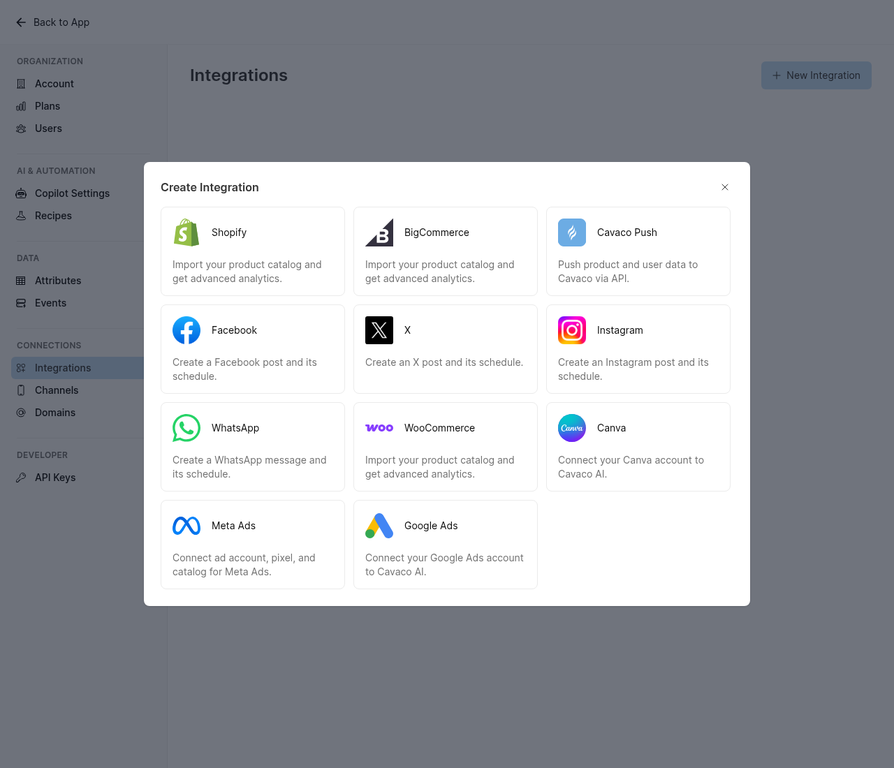
Step 2: Select Google Ads
Click the Google Ads tile. You will be redirected to Google's OAuth consent screen.
Step 3: Log In and Grant Permissions
Sign in with the Google account that has admin access to your Google Ads account. Grant all requested permissions so Cavaco can manage campaigns and sync audiences on your behalf.
Step 4: Select Your Google Ads Account
After authorising, select the Google Ads account (Customer ID) you want to connect. If you manage multiple accounts under a Manager Account (MCC), you'll see all linked accounts listed.
Step 5: Confirm and Save
Click Save. The integration is now active. Cavaco will begin syncing your customer segments to Google as Customer Match lists within the next few minutes.
What Happens Next
Once connected, you can start creating Google campaigns from the Creating Google Ads Campaigns guide. Your Cavaco audience segments will automatically appear as Customer Match targeting options inside the campaign builder.
.png)