.png)


Agentic Teams let you organize specialized AI team members around a shared customer experience. Instead of relying on one general-purpose bot, you can use a team whose members have distinct roles, brand instructions, knowledge, audiences, and availability.
This guide explains how teams are structured, how their members are configured, and how a team is assigned to a customer-facing channel.
What Agentic Teams Are
In Cavaco, an Agentic Team is a reusable group of AI members designed for a business function. The Agentic Teams area includes teams such as Community Manager, Product Expert, Sales Advisor, Support Specialist, Campaign Promoter, and Primary Brand Voice.
To view your teams, go to Foundation → Agentic Teams. Each card identifies the team’s purpose and role tags. Select a team to review its members, or select New Agentic Team to create one for a different use case.
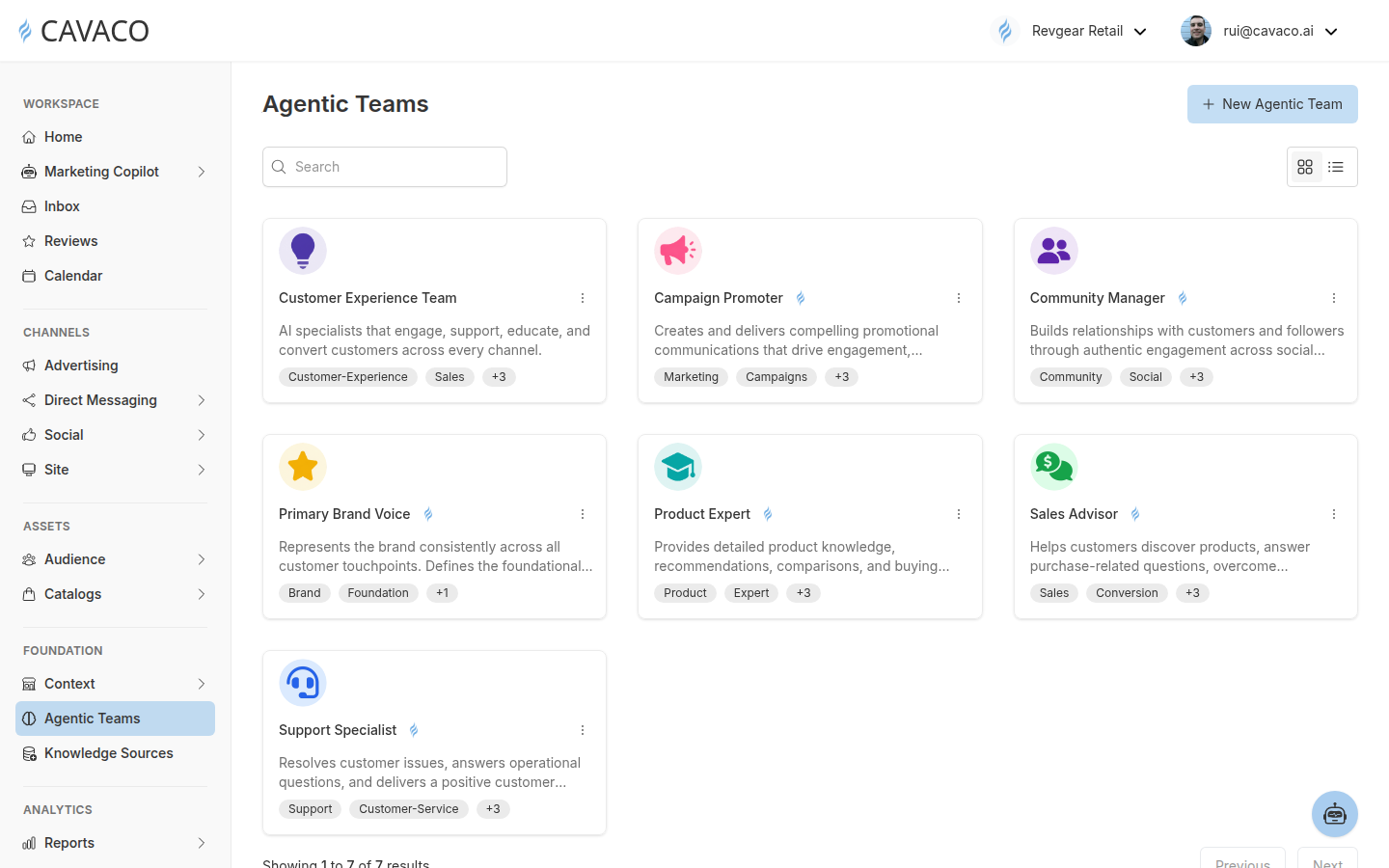
The Agentic Teams page shows the reusable teams available in the workspace.
Choose a team based on the job it needs to perform. For example, a Community Manager is suited to social engagement, while a Product Expert is designed to provide product knowledge, comparisons, and buying guidance.
How Team Members Route and Personalize Conversations
Each Agentic Team can contain multiple members. A member can be marked as the default, assigned to one or more customer segments, and given a schedule. These controls let you decide which member is available for different audiences and operating periods.
In the example below, the Community Manager is the default member for all segments. Other members are assigned to audiences such as Engaged Non-Purchasers, Loyal Customers, New Customers, and Champions. The member table also shows whether each member is always active or follows another schedule.
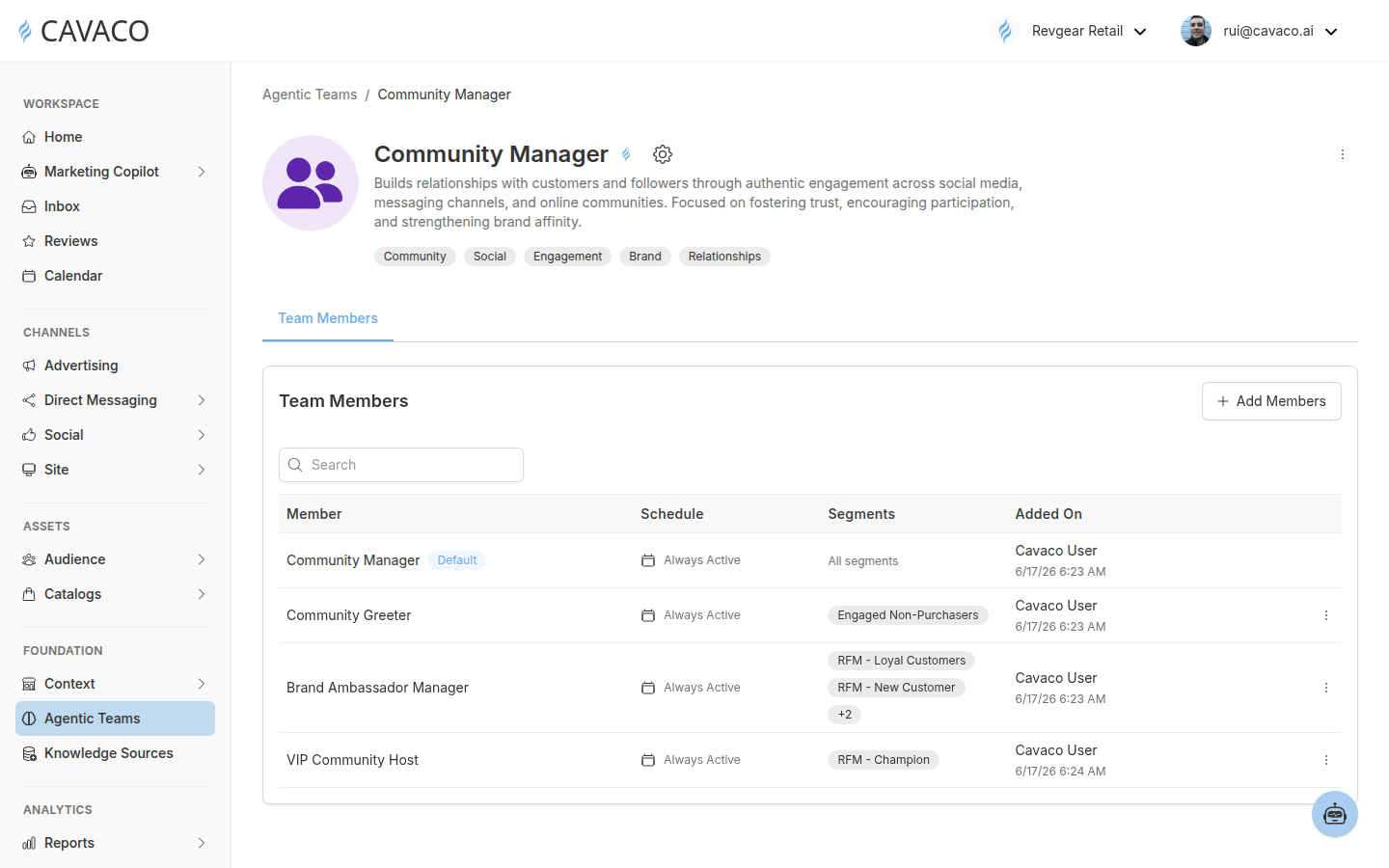
Team members can be assigned by segment and schedule, with one member designated as the default.
Customize a member before assigning the team
Open a member to review its configuration. Member settings include Identity, Knowledge, Merchant, and Intents. Identity settings include the member name, greeting, fallback message, tone of voice, emoji usage, reply detail, signature phrases, and style guidance.
Use the built-in test panel to send a sample customer message and review the member’s response before assigning the team to a live channel. This helps you validate the member’s voice and available knowledge without changing an active channel configuration.
Assign an Agentic Team to a Channel
Agentic Teams become customer-facing when you assign them in a channel’s settings. For social engagement, go to Social → Auto Replies. Each connected account has an Assigned Team selector and separate automation controls for private and public interactions.
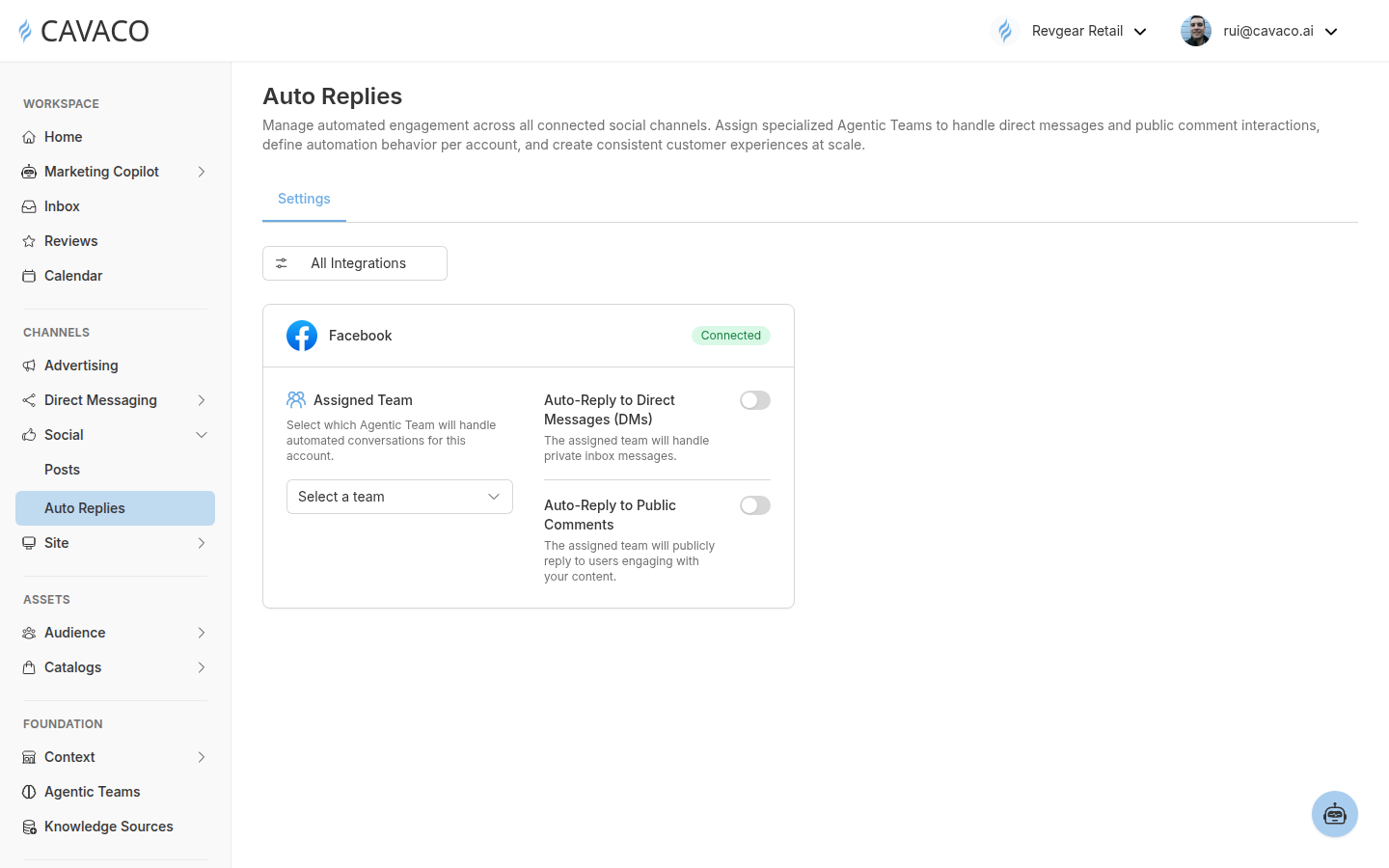
Select the Agentic Team that should handle a connected account, then choose which interaction types to automate.
For a connected social account, select the team first. You can then enable the interaction types that the team should handle, such as direct messages or public comments. Keep an automation switch off when you do not want Cavaco to respond to that interaction type.
Agentic Teams are reusable. The same team structure can support consistent identity and knowledge across the channels where that team is made available, while each channel keeps its own assignment and automation settings.
Related articles
.png)