.png)


Connect your organic social accounts to Cavaco to create, schedule, publish, and manage content from the same workspace as your broader marketing activity.
Cavaco currently supports organic social connections for Facebook, Instagram, and X. The Instagram connection uses Meta’s business APIs, so a personal Instagram account cannot be connected directly.
Prepare and Connect a Social Account in Cavaco
Go to Settings → Integrations, select New Integration, and choose Facebook, Instagram, or X. Organic Facebook and Instagram connections are separate from the Meta Ads integration, which is used for ad accounts, pixels, and advertising catalogs.
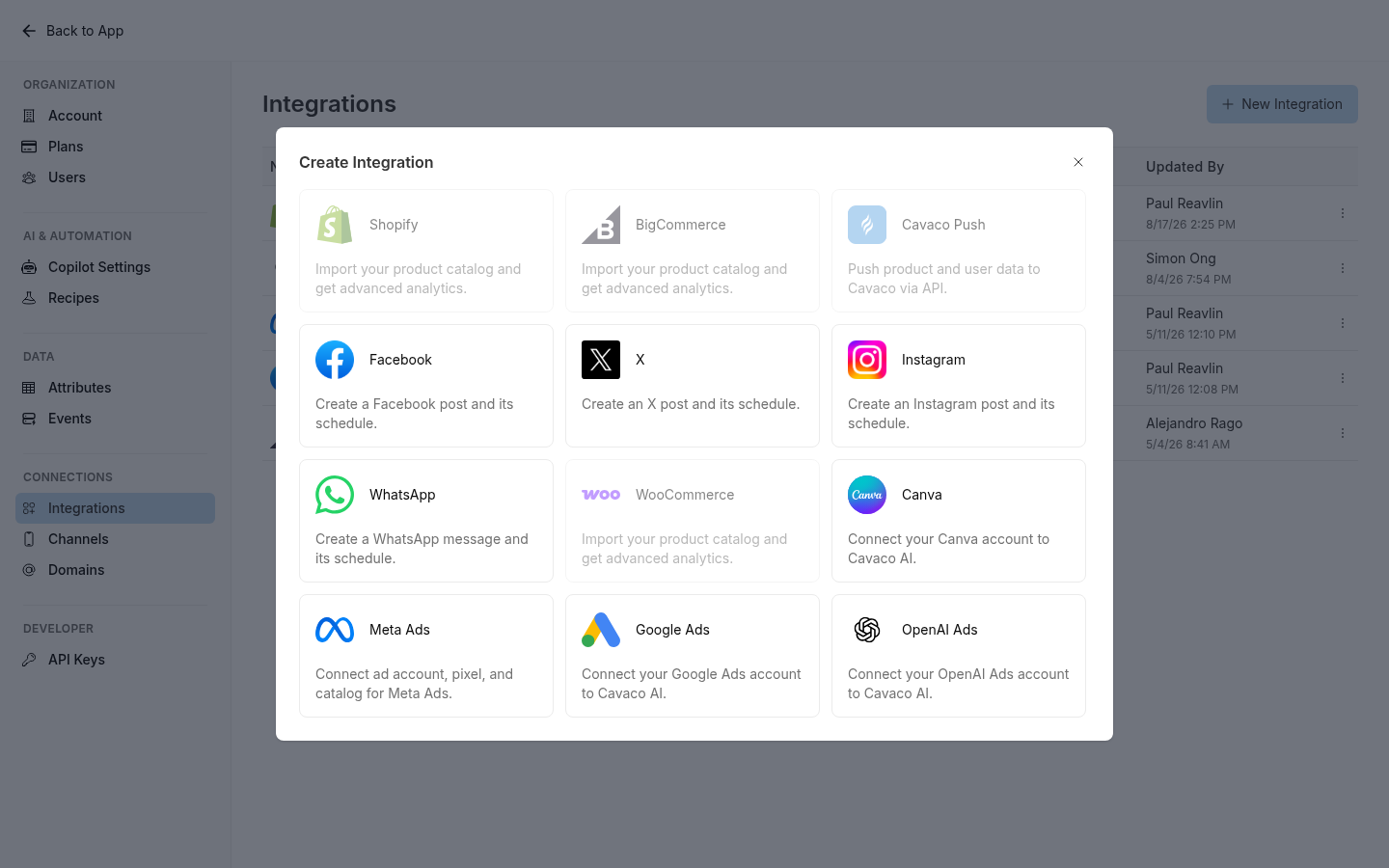
Select Facebook, Instagram, or X for organic publishing. Meta Ads is a separate advertising connection.
Before you connect Instagram
Your Instagram account must meet all of the following requirements:
- It is an Instagram professional account: Business or Creator.
- It is connected directly to a Facebook Page.
- You have full control of that Facebook Page.
- The Instagram account and Facebook Page are in the same Meta business portfolio.
Important: Adding Instagram and a Facebook Page to the same Meta business portfolio does not automatically connect the two assets. Meta may show them as separate profiles in Business Suite. Cavaco requires the professional Instagram account to be linked directly to the Facebook Page.
Switch a personal Instagram account to professional
In the Instagram mobile app:
- Open your profile, then open More.
- Go to Settings and activity.
- Under For professionals, select Account type and tools.
- Select Switch to professional account.
- Choose the category that best describes the account.
- Choose Business or Creator and complete the remaining setup.
Meta recommends Business accounts for retailers, brands, local businesses, organizations, and service providers. If a personal account is private, Meta states that switching it to professional makes it public and automatically accepts pending follow requests.
See Meta’s official guide: Set up a professional Instagram account.
Link the professional Instagram account to a Facebook Page
In the Instagram mobile app:
- Open your profile and select Edit profile.
- For a Business account, go to Public business information. For a Creator account, go to Profile information.
- Select Page → Connect or create → Continue.
- Log in to Facebook, choose the Page, and select Connect.
The Facebook login is the authentication step that confirms your access to the Page. See Meta’s official guide: Connect a professional Instagram account and Facebook Page.
Complete the Cavaco connection
- Return to Settings → Integrations in Cavaco.
- Select New Integration.
- Choose Facebook, Instagram, or X.
- Follow the provider’s authorization prompts and grant the requested access.
- Select the Page or account that belongs to this Cavaco workspace, then complete the connection.
Connect Facebook and Instagram separately when you want to publish to both organic channels.
Verify and Manage Connected Channels
After authorization, return to Settings → Integrations. A successful connection appears in the table with an Active status. The table also identifies the provider, the person who last updated the integration, and the update time.
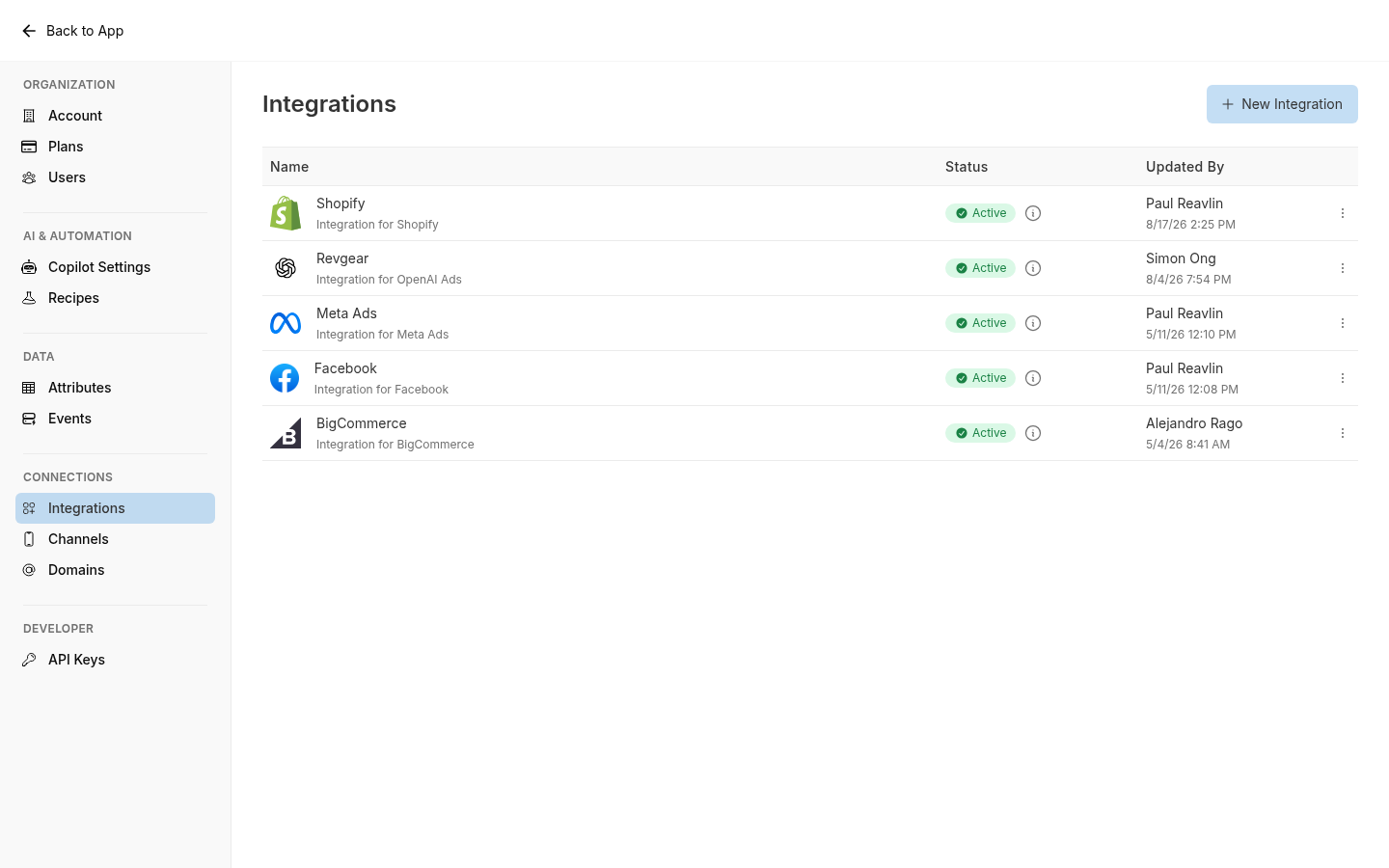
Use the Integrations page to confirm that a social connection is active and to open its row actions.
If Instagram does not appear during connection
Check the Meta setup before retrying:
- Confirm that the Instagram account is Business or Creator, not Personal.
- Confirm that Instagram is linked directly to the Facebook Page.
- Confirm that you have full control of the Page.
- Confirm that the Page and Instagram account are in the same business portfolio.
- Confirm that the Instagram account does not belong to a different business portfolio.
If Instagram and the Page only appear as separate profiles in Meta Business Suite, connect them directly before retrying Cavaco.
What the social connection enables
Once connected, the account becomes available in Cavaco’s social tools. Depending on the platform, you can create and schedule organic content, use the Social Posts workspace to manage publishing, review social performance in Social Analytics, and assign an Agentic Team in Social Auto Replies for supported private and public interactions.
For Instagram, Cavaco’s publishing workflow supports posts, Reels, and Stories. Auto-reply behavior is configured separately for each connected account, so connecting a channel does not enable automated replies by itself.
Related articles
.png)