.png)


SMS Channel Setup
Setting up your SMS channel in Cavaco involves configuring your sending preferences, registering your brand for 10DLC compliance (US only), and testing your first message.
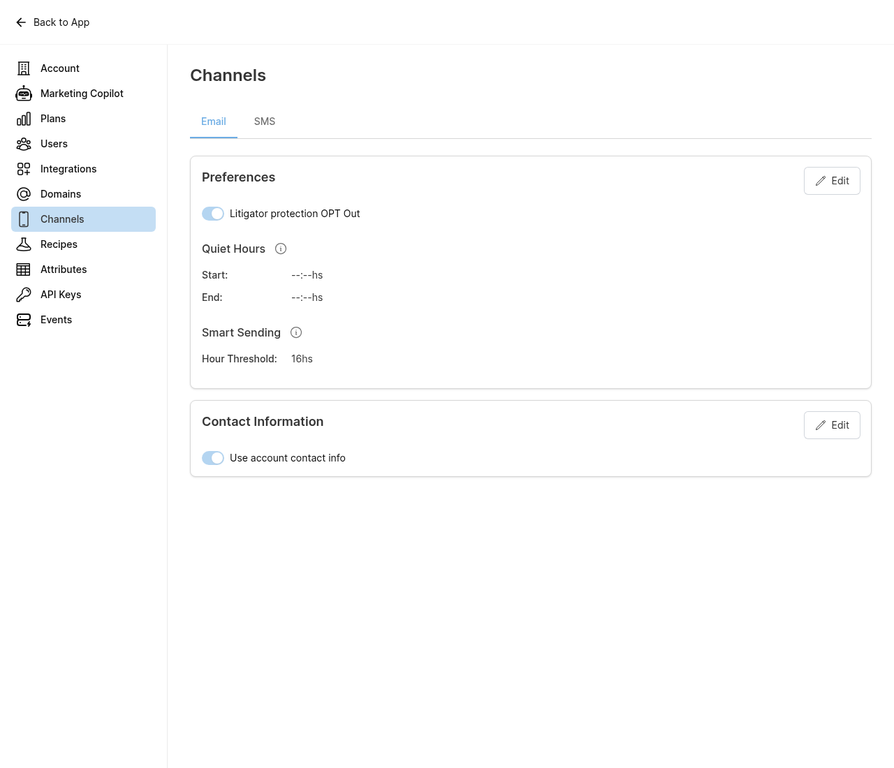
The Channels settings page where you configure SMS sending preferences and compliance settings.
10DLC Registration (US Only)
If you send SMS to US phone numbers, you must register your brand and campaigns under the 10DLC (10-Digit Long Code) system. This is a carrier requirement designed to reduce spam. Navigate to Settings > Channels > SMS and follow the 10DLC registration wizard. Registration typically takes 2–5 business days.
SMS Sending Settings
Configure the following settings in Settings > Channels > SMS:
- Quiet Hours — Set hours during which no SMS messages are sent (required by TCPA: no messages between 9 PM and 8 AM in recipient's local time)
- Smart Sending — Minimum hours between SMS messages to the same contact
- Opt-Out Keywords — Cavaco automatically handles STOP, UNSUBSCRIBE, CANCEL, END, and QUIT
- Opt-In Confirmation — Send an automatic confirmation message when a contact subscribes to SMS
Testing Your SMS Channel
Before launching your first SMS campaign, send a test message to your own phone number. Verify the message appears correctly, the sender name is correct, and the opt-out instructions are included.
.png)