.png)


What Is the Tracking Pixel?
The Cavaco tracking pixel is a small piece of JavaScript code that you install on your website. It tracks visitor behavior — page views, product views, add-to-cart events, and purchases — and sends this data to Cavaco in real time. This behavioral data powers personalization, segmentation, and attribution.
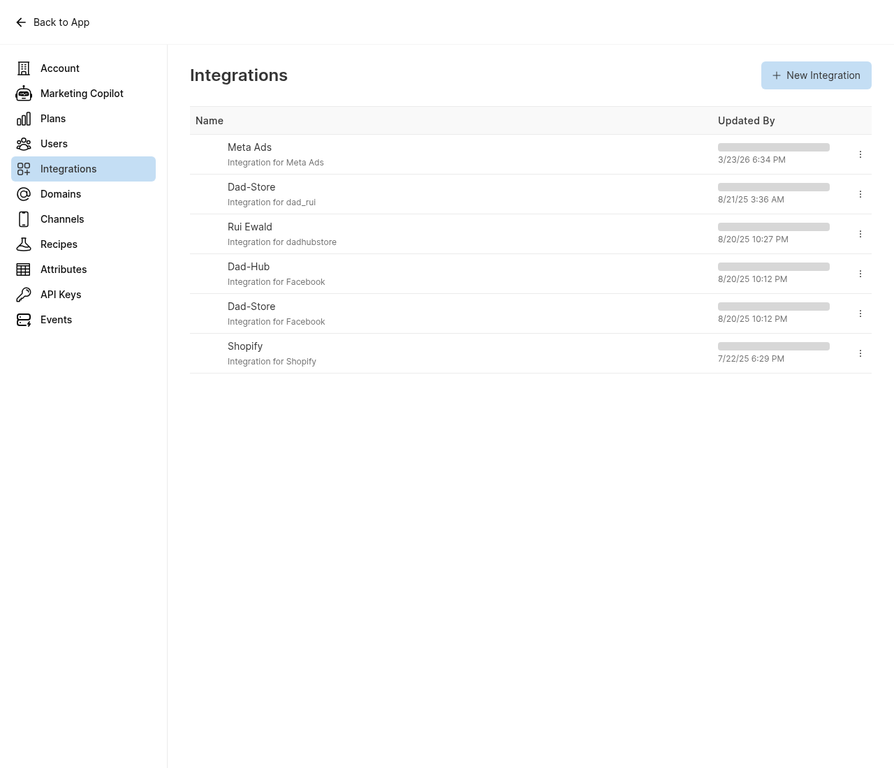
The tracking pixel code is found in Settings under your domain configuration.
Finding Your Pixel Code
Navigate to Settings > Domains and select your domain. Click View Pixel Code to see your unique tracking pixel. Each Cavaco account has a unique pixel ID — do not share this code publicly.
Installing on Shopify
For Shopify stores connected via the Cavaco app, the pixel is installed automatically. No manual installation is required. Verify the pixel is active by checking the "Pixel Status" indicator on the Domains page.
Installing on Other Platforms
For all other platforms, copy the pixel code and paste it into the <head> section of every page on your website. The pixel should load on all pages — not just the homepage — to track the full customer journey.
Verifying the Pixel
After installation, visit your website and then check the Domains page in Cavaco. The pixel status should change from "Not Detected" to "Active" within a few minutes of your first page view.
.png)