.png)


Getting Started: Installing Cavaco AI on Shopify
If your store runs on Shopify, getting started with Cavaco AI is a streamlined process. The integration uses Shopify's App Bridge and OAuth to automatically sync your product catalog, customer data, and onsite events.
Step 1: Install from the Shopify App Store
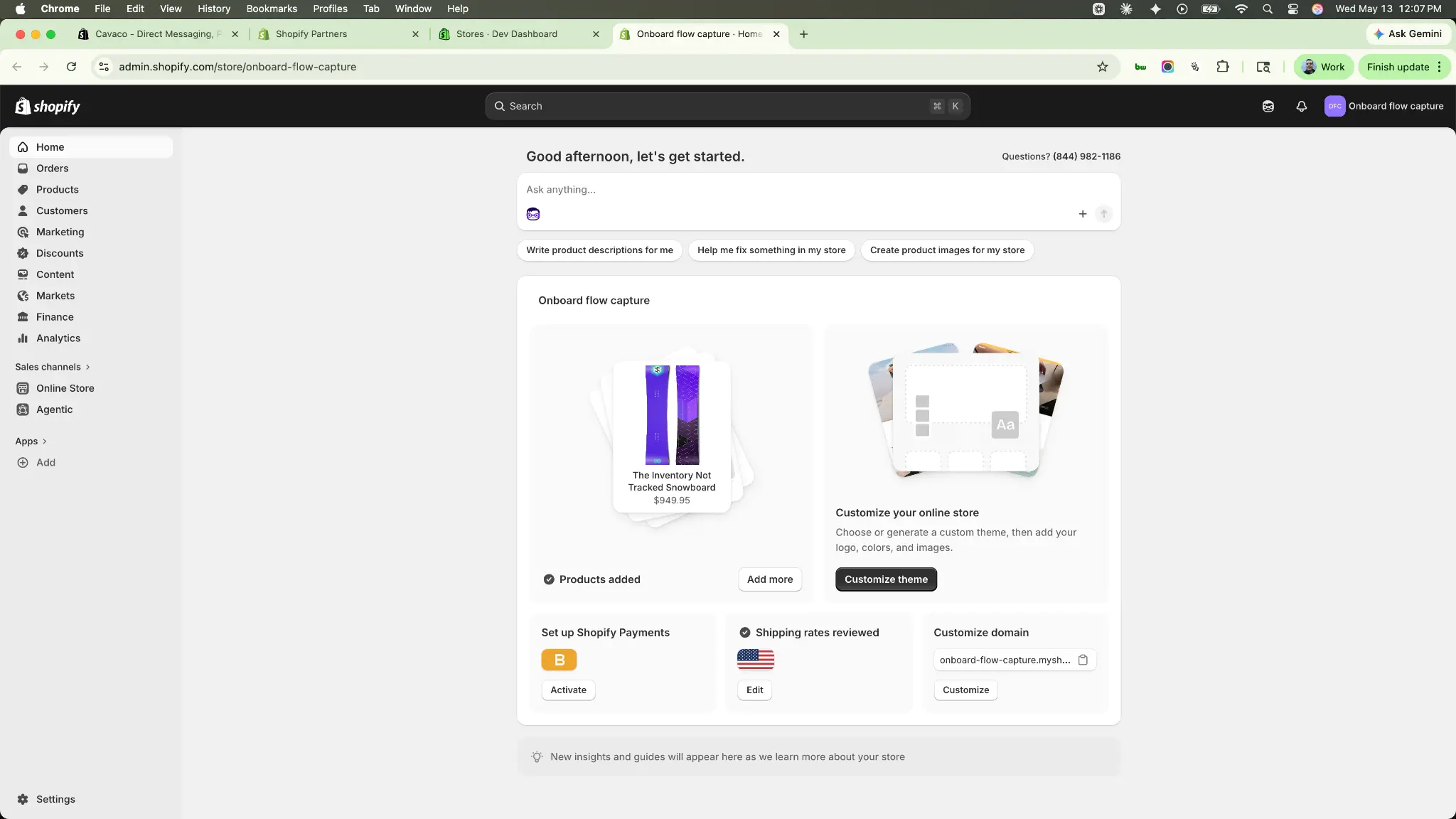
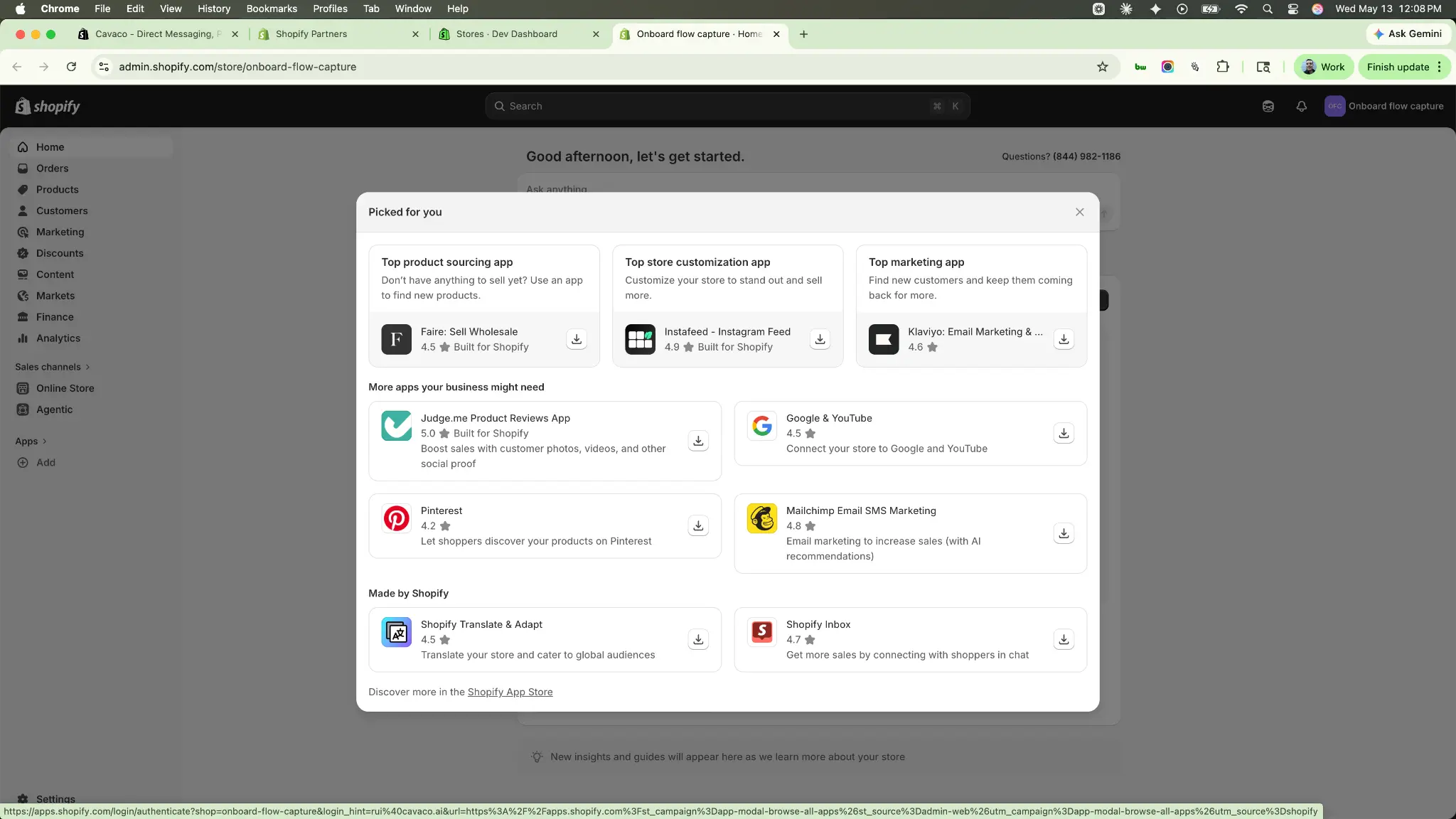
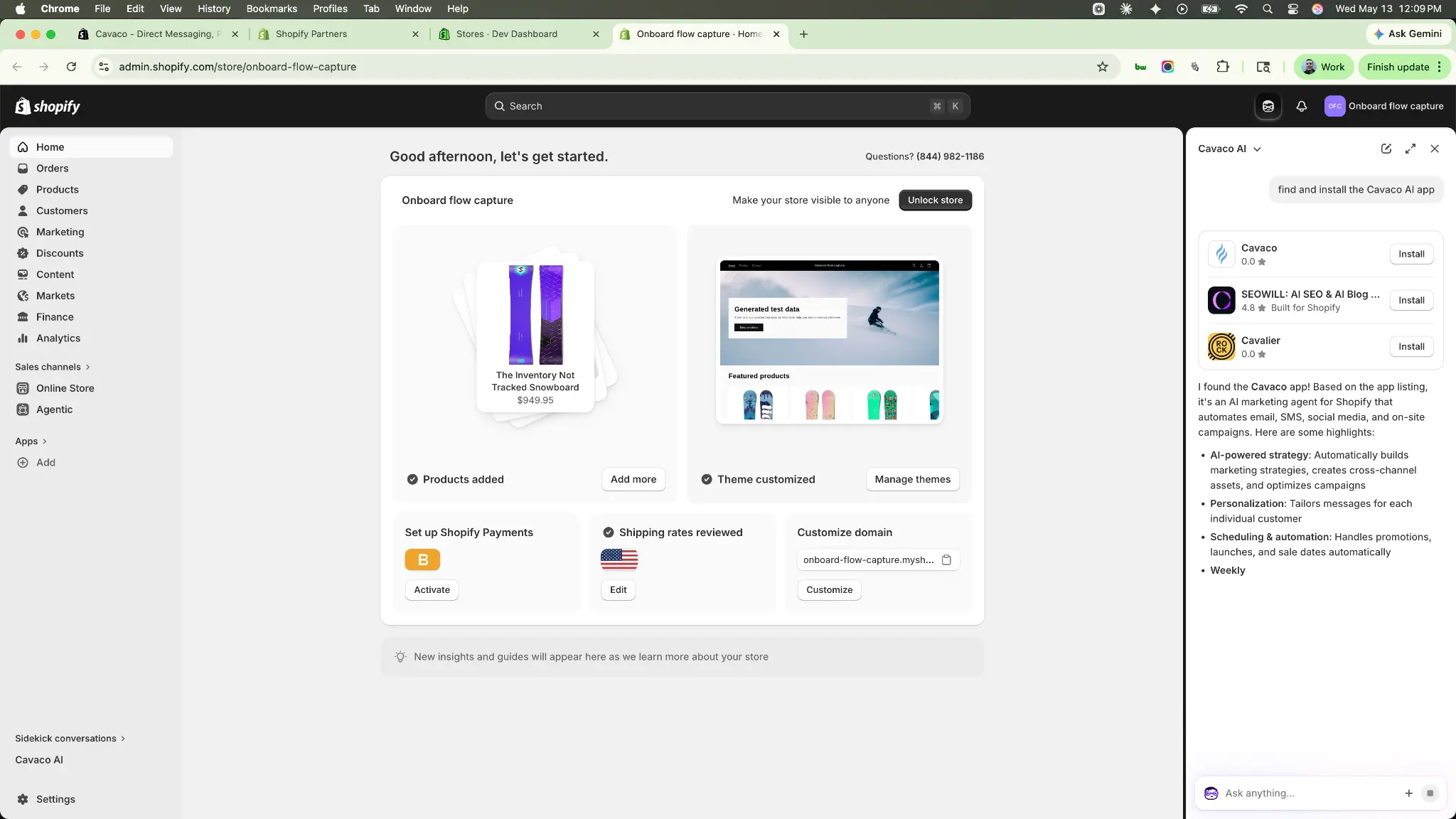
You can find Cavaco AI directly within your Shopify Admin. Open your Shopify dashboard, navigate to Apps, and search for "Cavaco". You can also use the Shopify Sidekick AI to find the app for you.
Step 2: Authorize the App
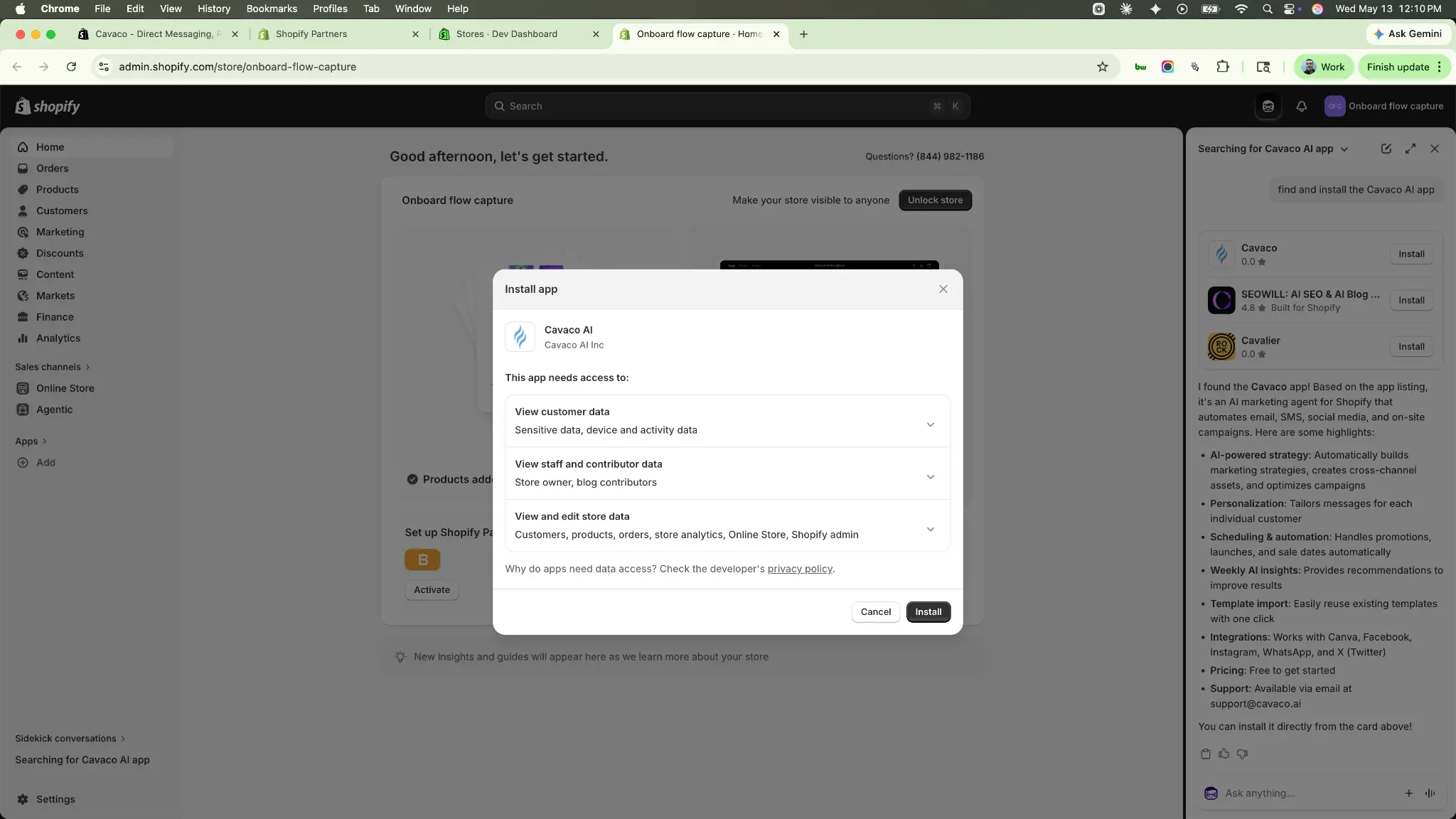
Once you select Cavaco AI, click Install. Shopify will ask you to authorize Cavaco AI to access your store data. We request specific scopes (such as customer data, staff data, and store data) required to sync your catalog for AI recommendations, read profiles for segmentation, and track purchase events.
Click Install app on the authorization screen.
Step 3: Create Your Cavaco Account
After authorizing the app, you will be redirected to the Cavaco AI sign-in page. You can either sign in with an existing account or create a new one.
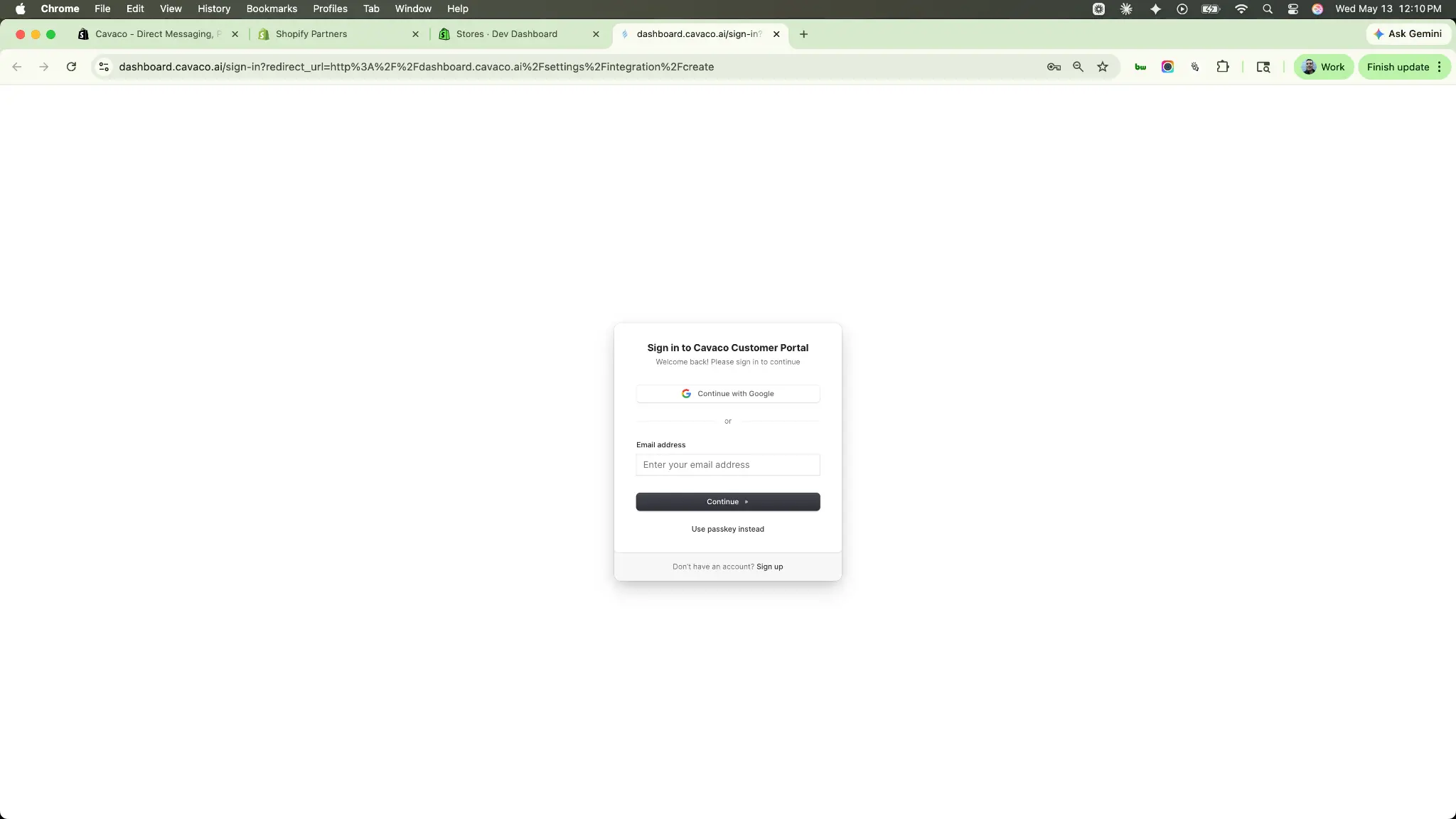
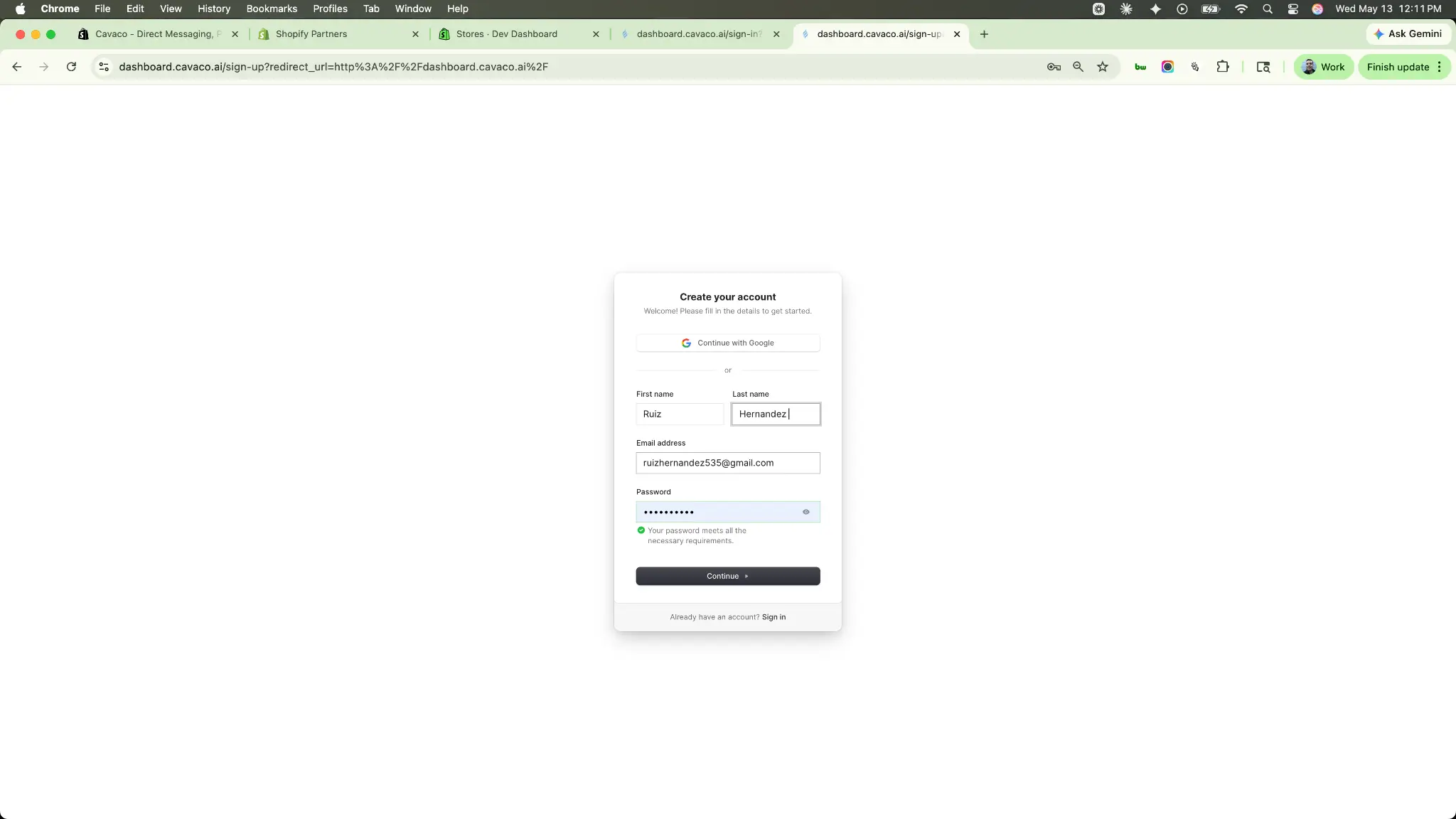
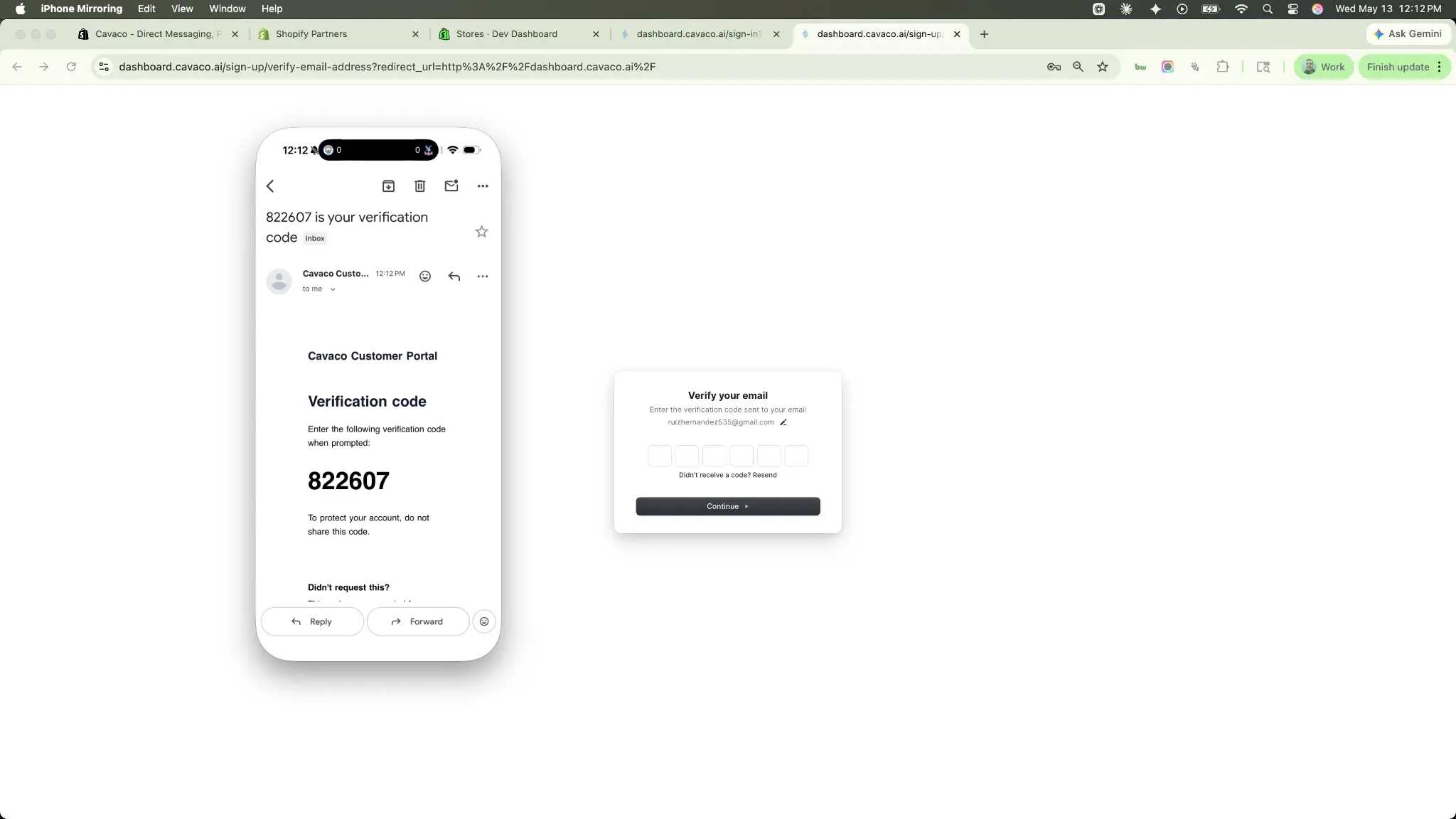
If creating a new account, fill out your details and verify your email address using the 6-digit code sent to your inbox.
Step 4: Complete the Onboarding Wizard
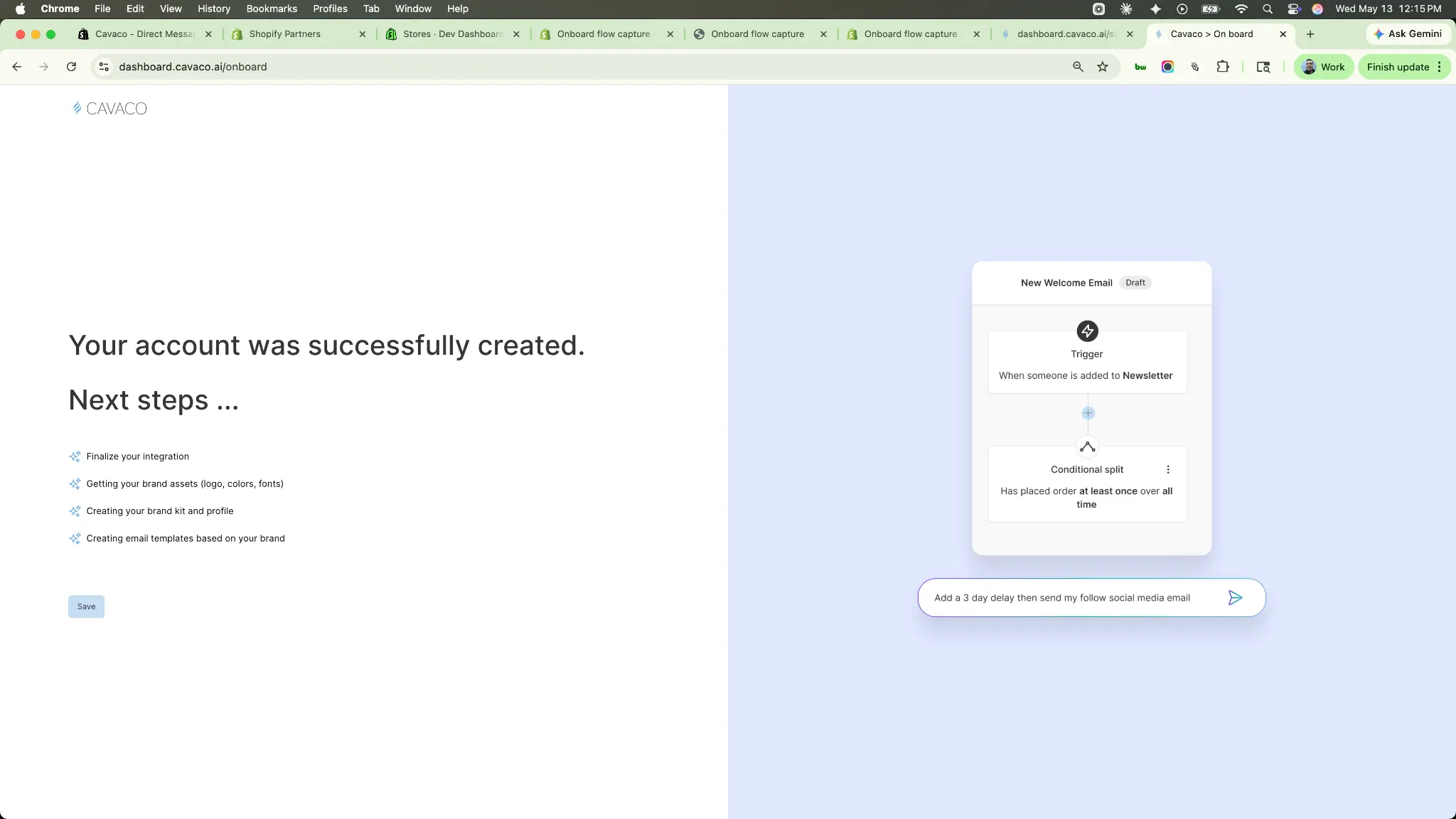
Once verified, you'll enter the Cavaco onboarding wizard. This quick process collects your company details, personal information, and your store URL.
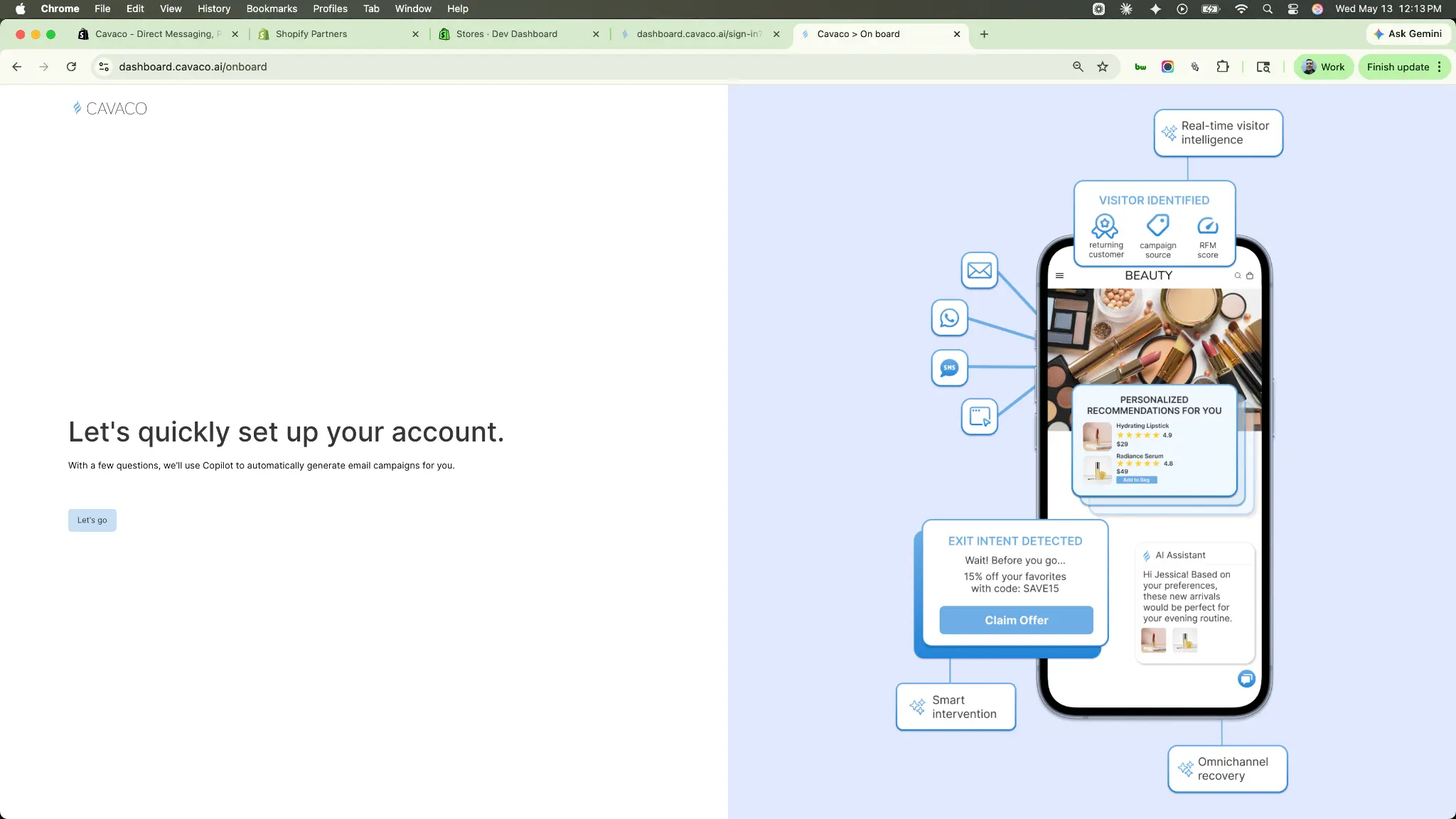
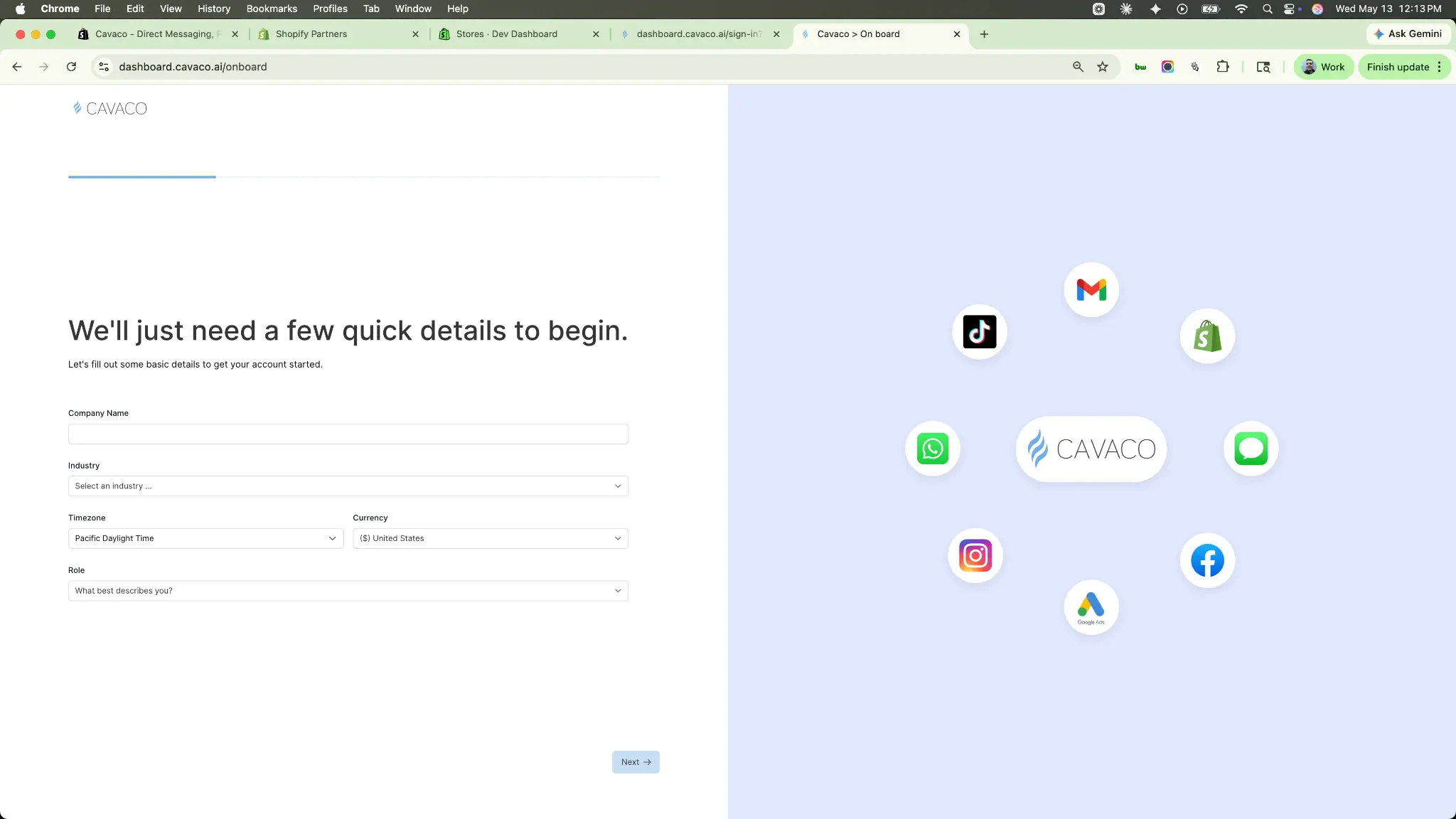
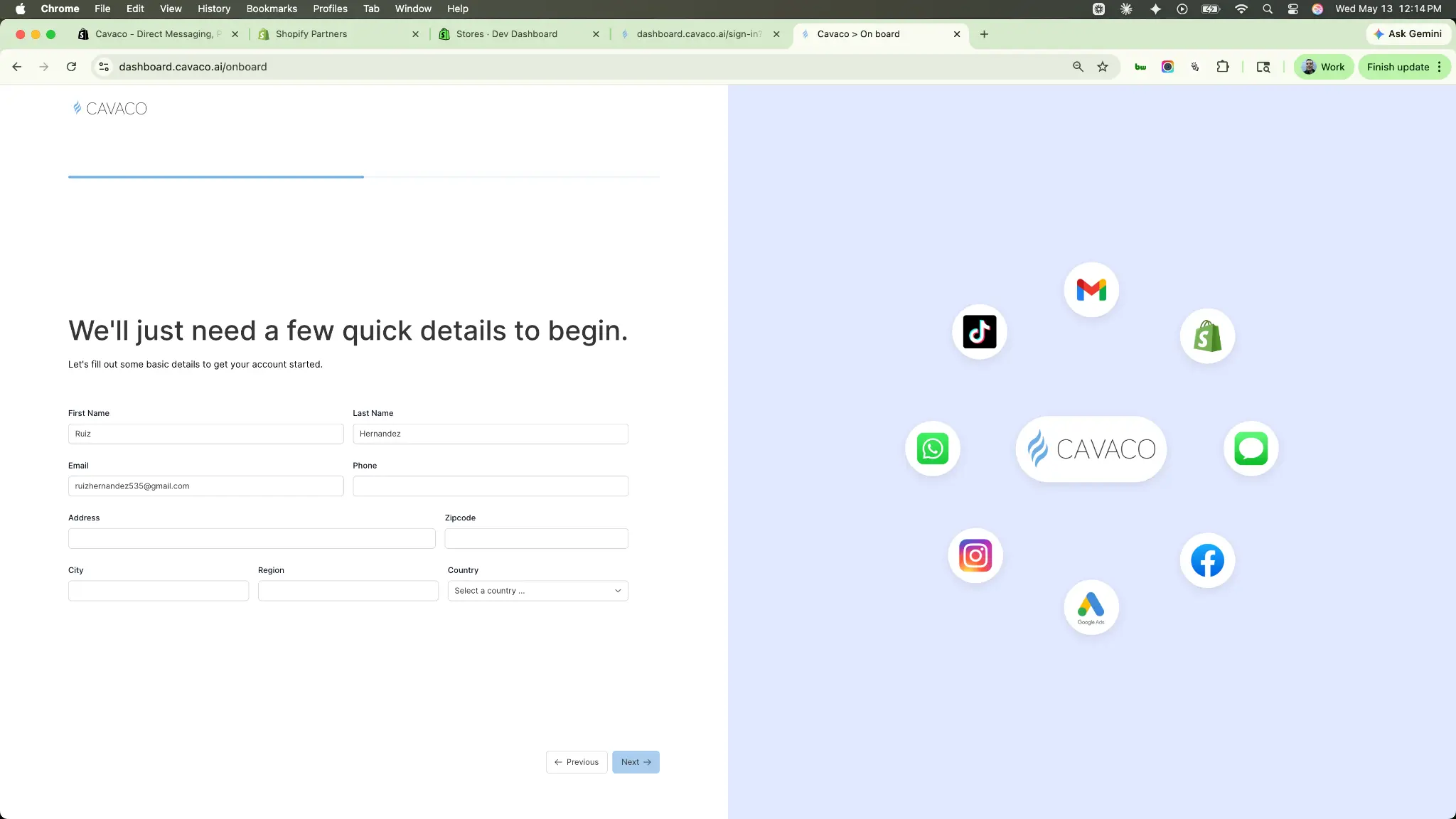
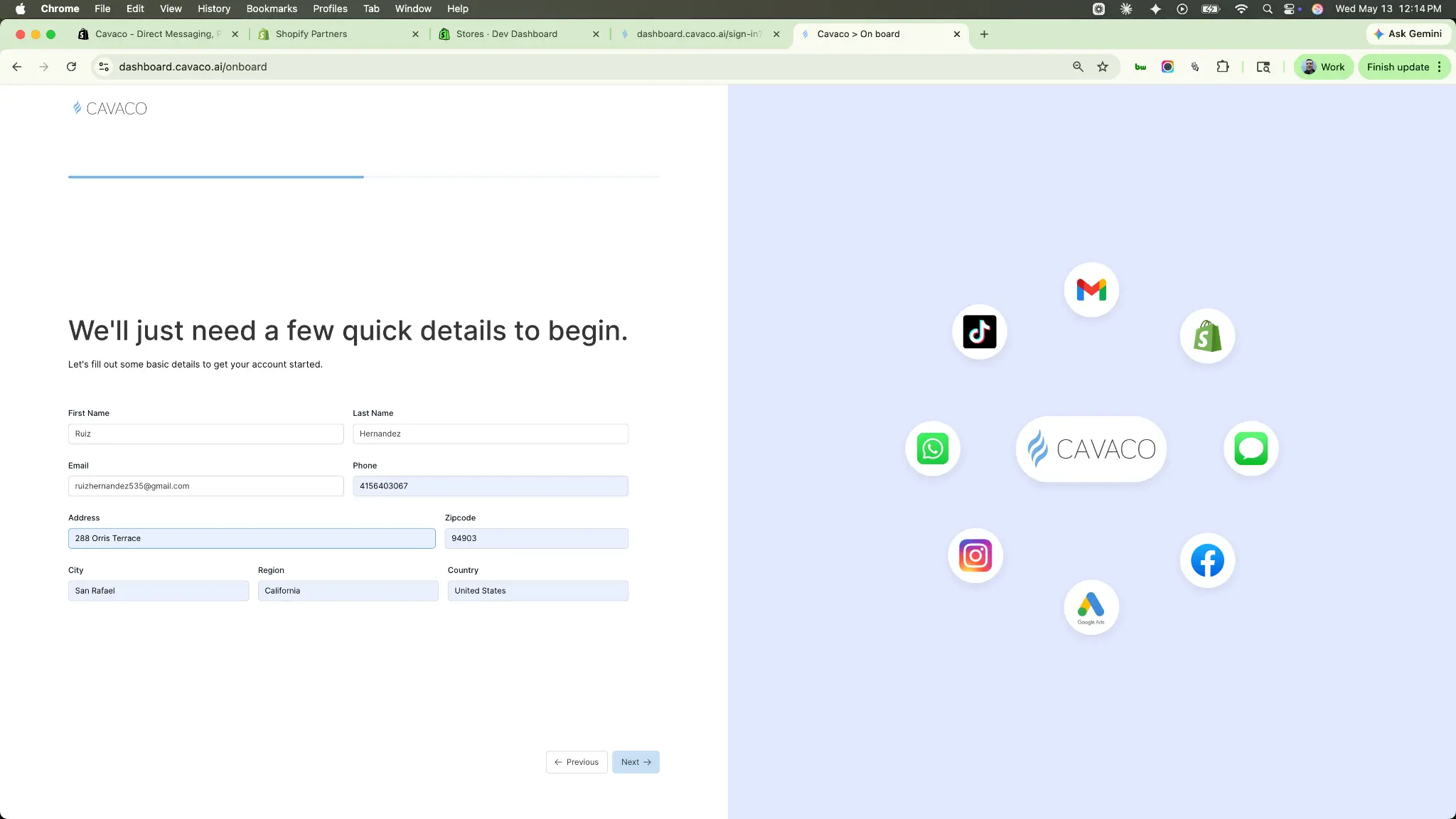
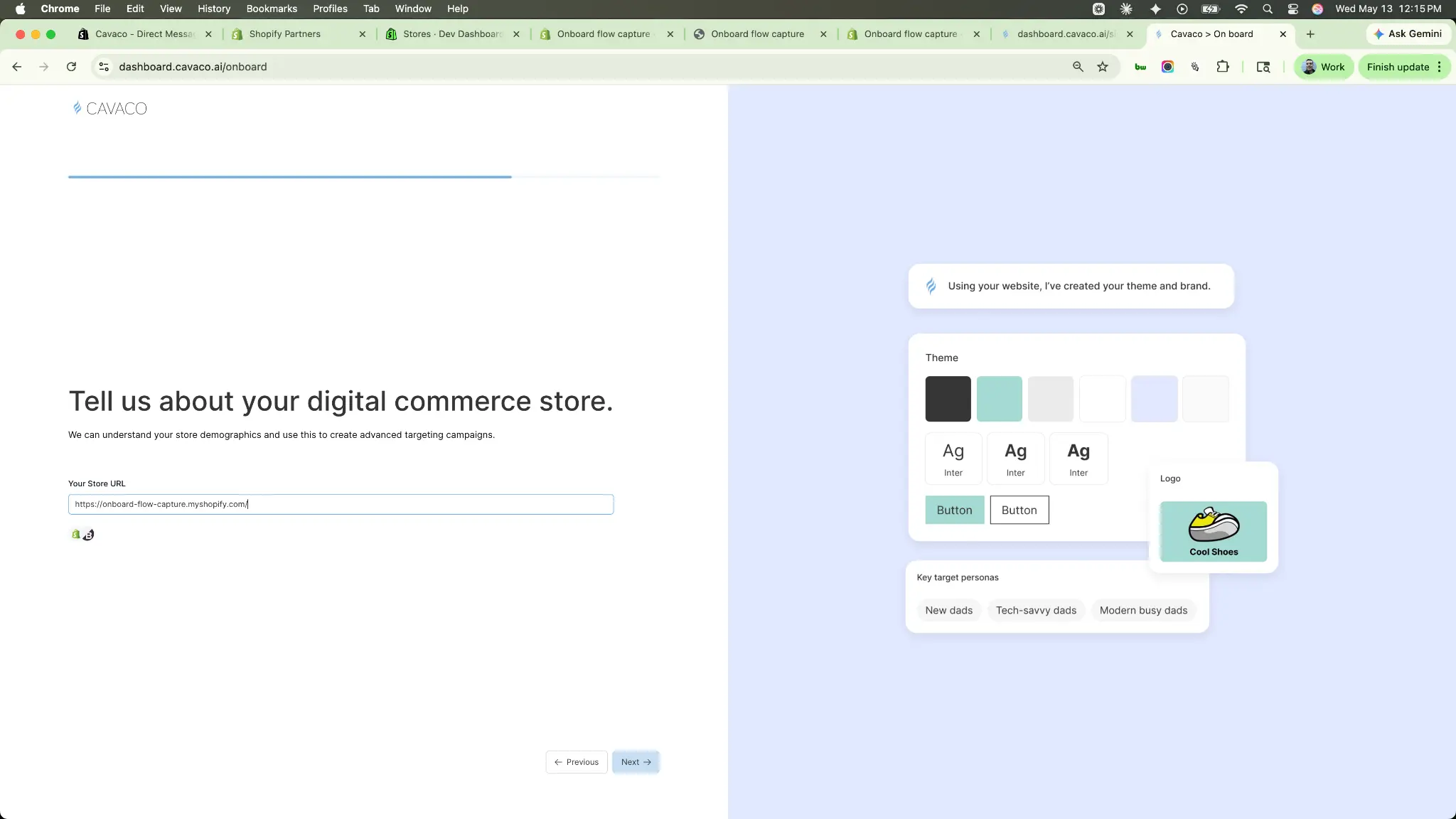
When you enter your store URL, Cavaco AI automatically generates your brand theme, colors, fonts, logo, and target personas from your website in real time.
Step 5: Take the Feature Tour
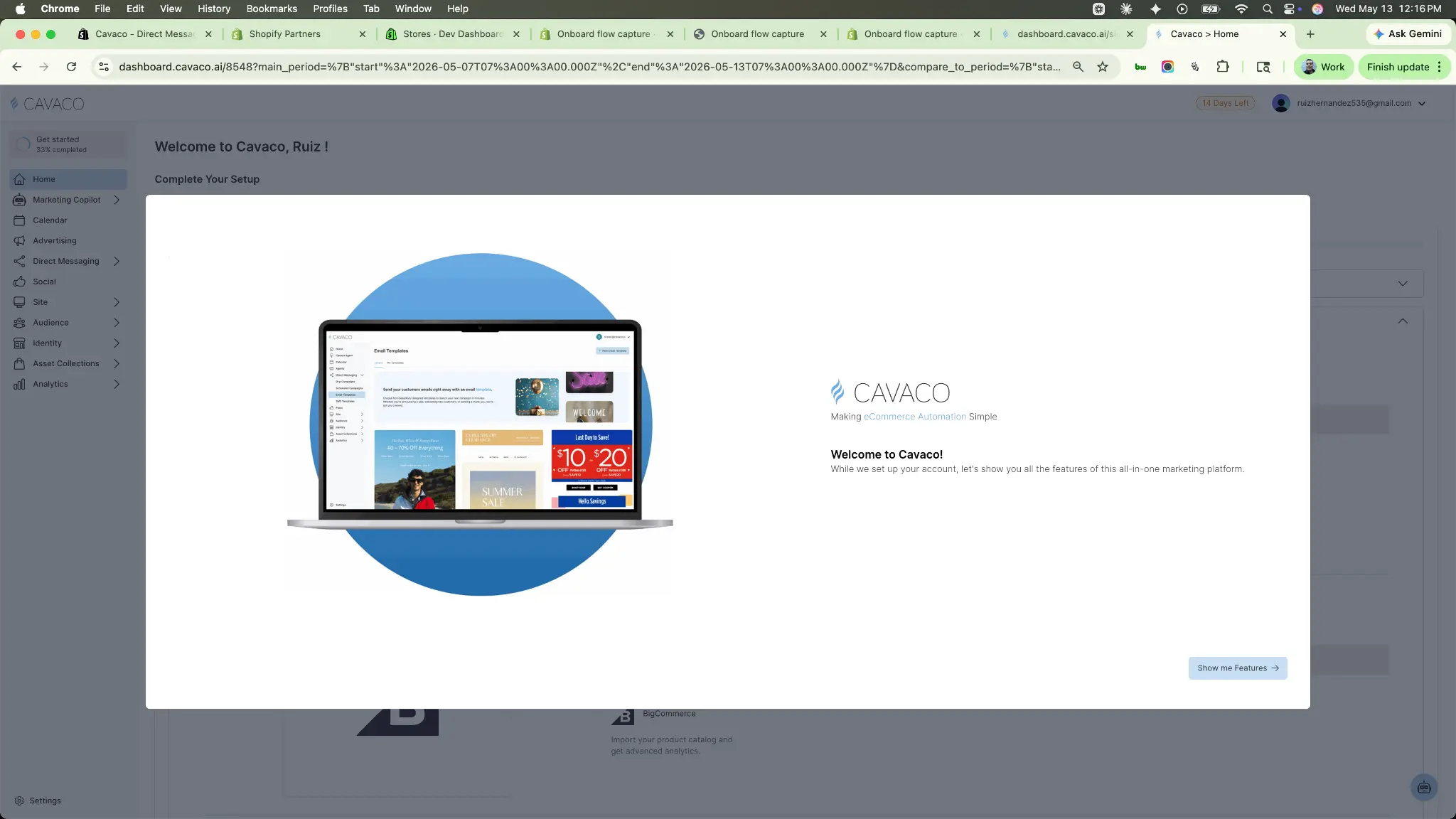
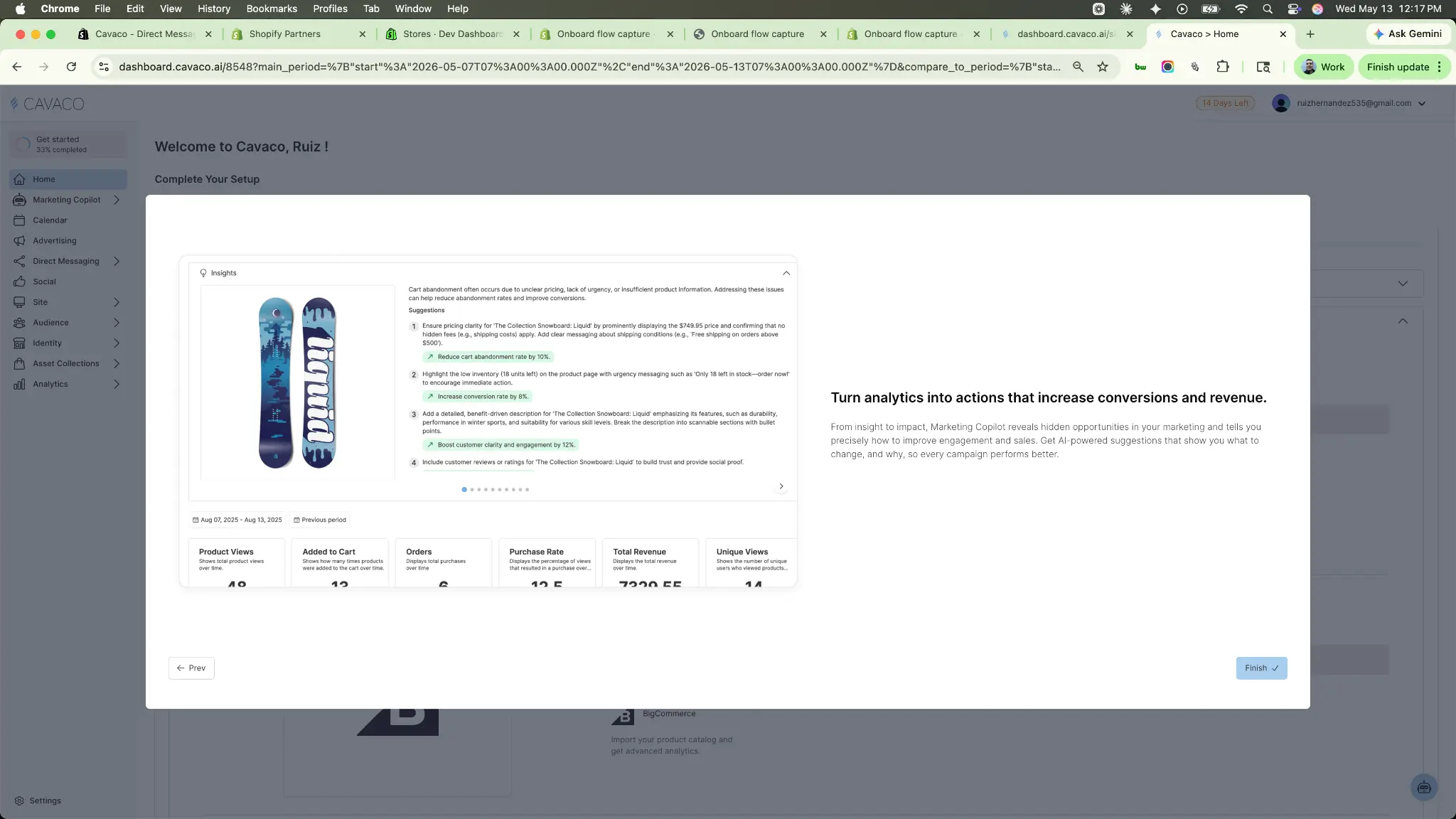
Before jumping into the dashboard, Cavaco will give you a quick tour of its core features, including AI insights, email templates, widget builders, social automation, drip campaigns, the AI shopper bot, and analytics.
Step 6: Finalize Your Setup
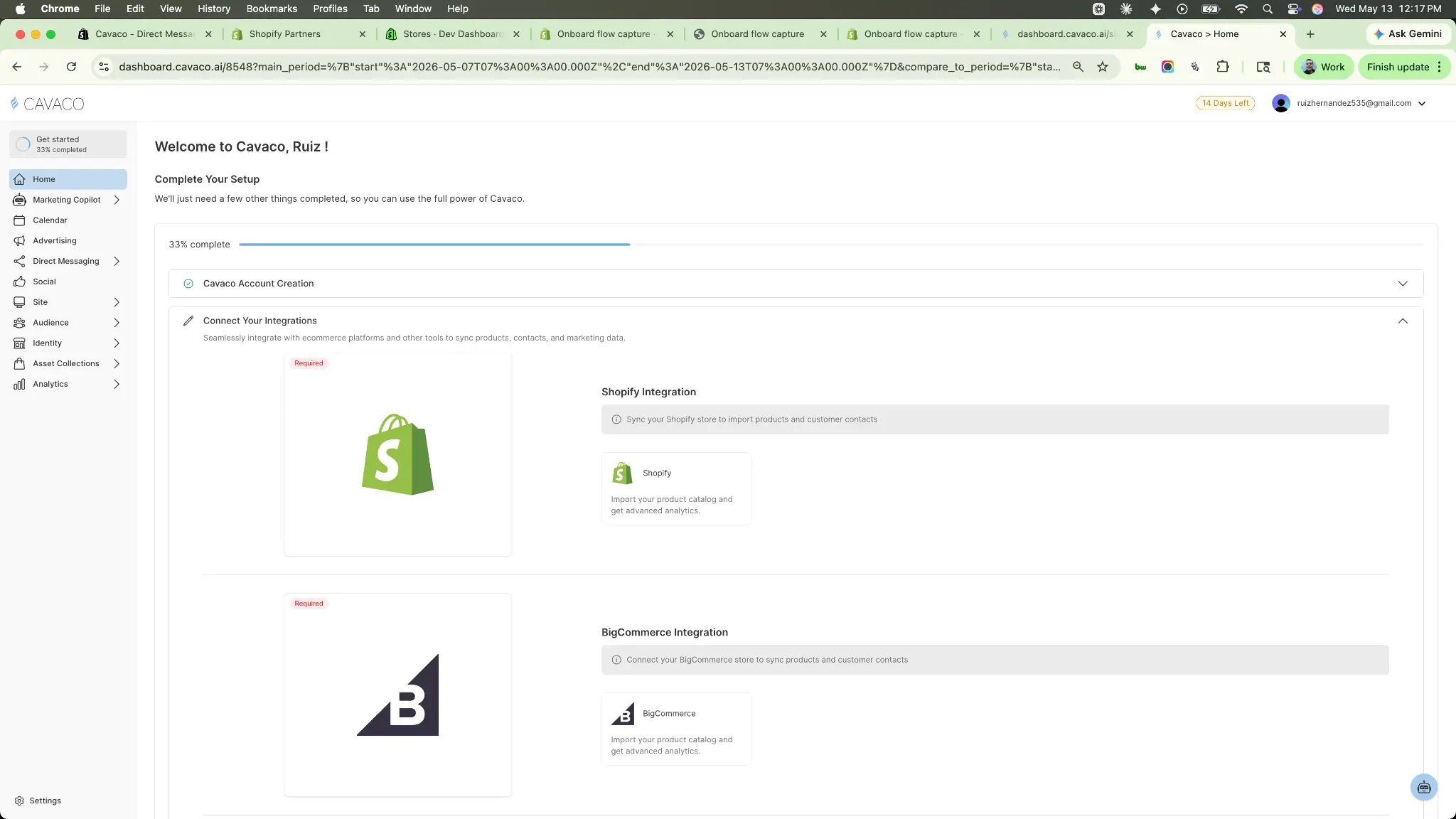
After the tour, you will land on the Cavaco Dashboard home, where you'll see your "Complete Your Setup" checklist. Because you started from Shopify, your Account Creation and Plan Selection are already complete.
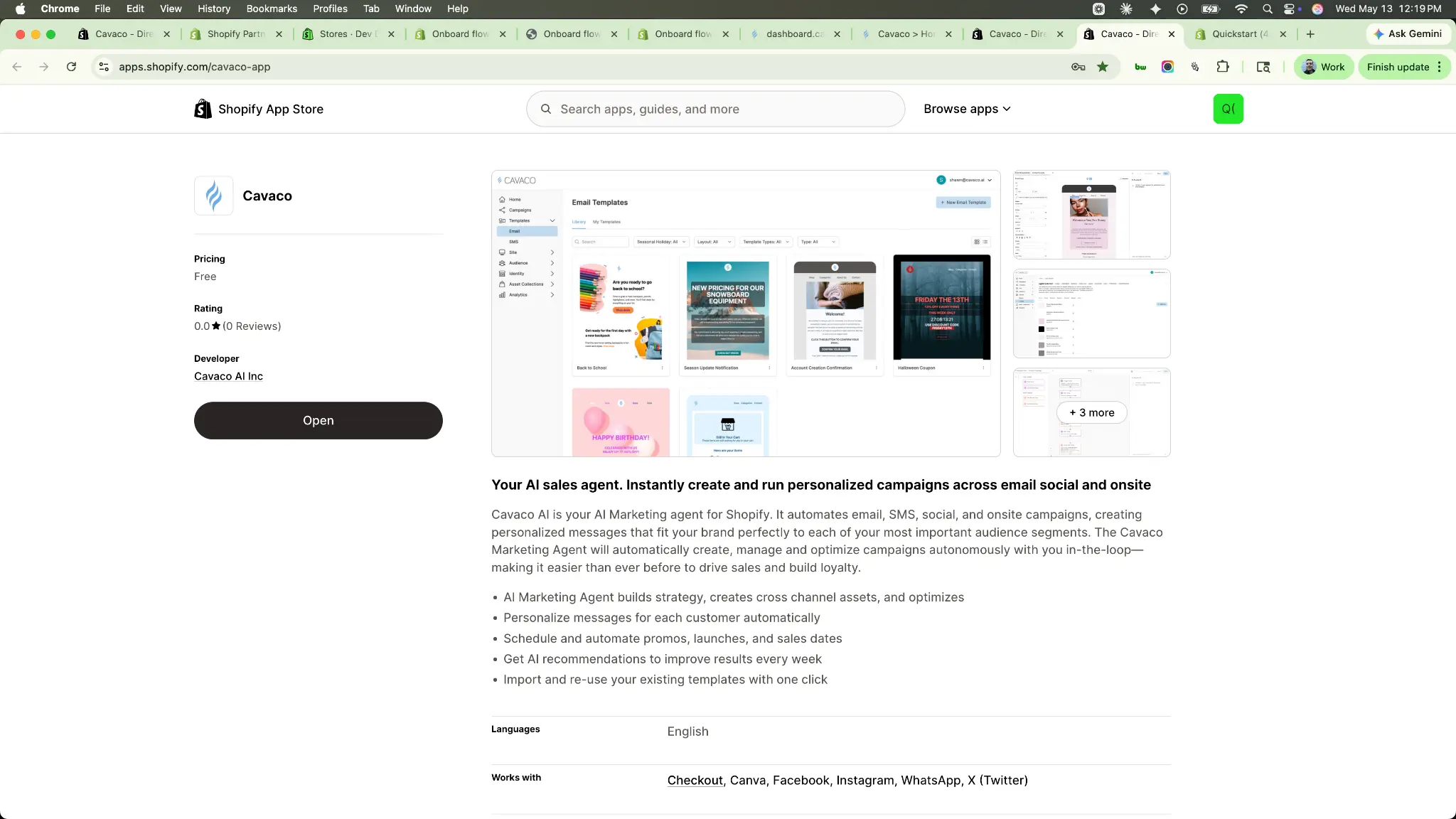
Click on Connect Your Integrations and select the Shopify "Import your product catalog" button. This will take you back to the Shopify App Store, where you can click Open to finalize the data connection.
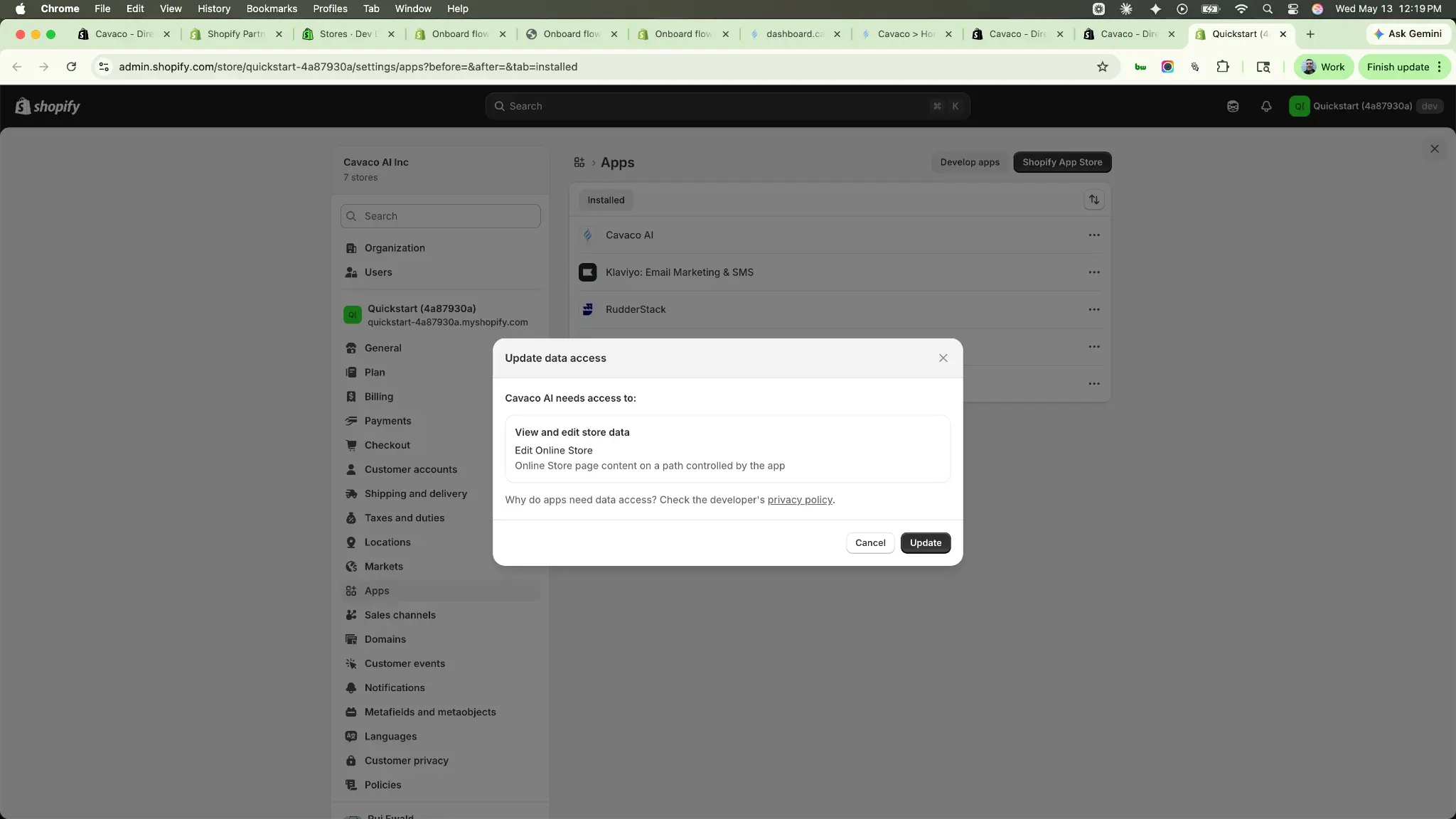
Note: If you are on a Shopify development store, you may see an "Update data access" dialog here. Simply click Update to continue.
Next Step: Return to the Main Getting Started Guide to walk through the rest of the onboarding checklist (Visual Theme, Brand Identity, and Domain Setup) and launch your first campaign.
.png)