.png)


Getting Started: Direct Sign-Up via Cavaco.ai
If you prefer to start directly from our website rather than an app store, getting started with Cavaco AI is simple. You can create your account first and connect your ecommerce platform later during the onboarding process.
Step 1: Sign Up on Cavaco.ai
Navigate to cavaco.ai and click the Get Started button in the top right corner. You will be directed to the Cavaco AI sign-up page.
Step 2: Create Your Cavaco Account
On the sign-in page, you can either sign in with an existing Google account or create a new account using your email address.
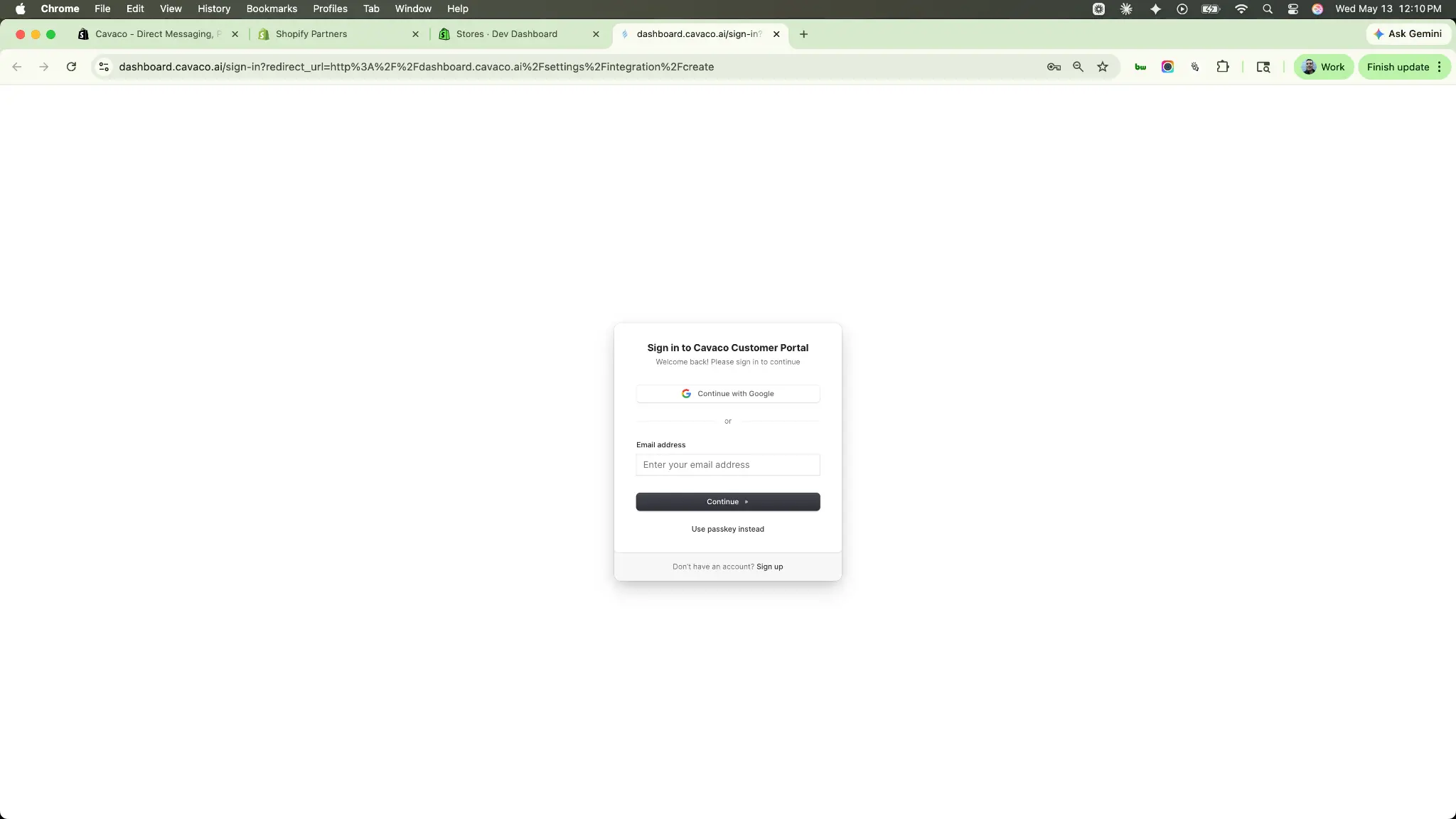
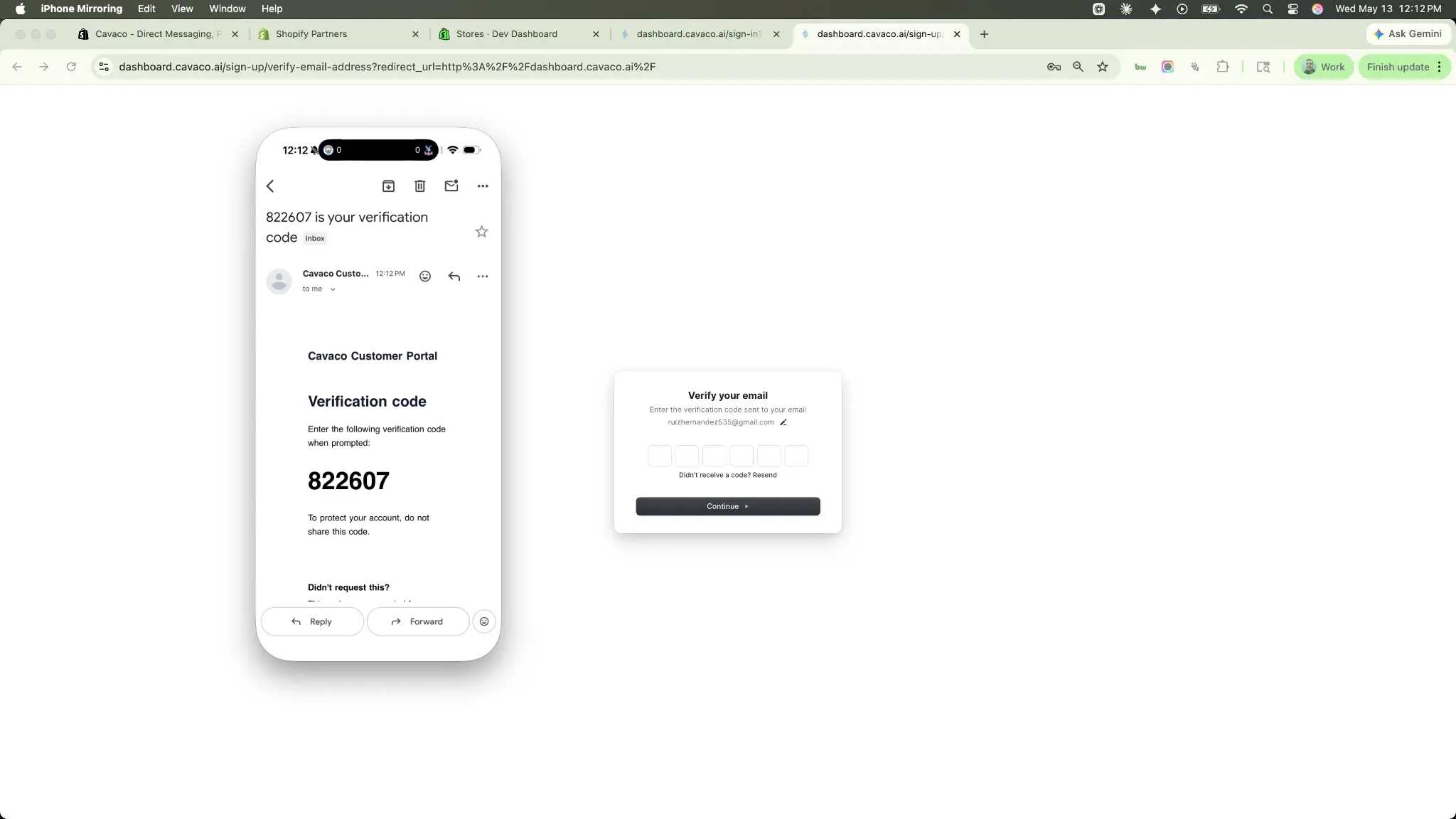
If creating a new account, fill out your details (First name, Last name, Email, Password) and verify your email address using the 6-digit code sent to your inbox.
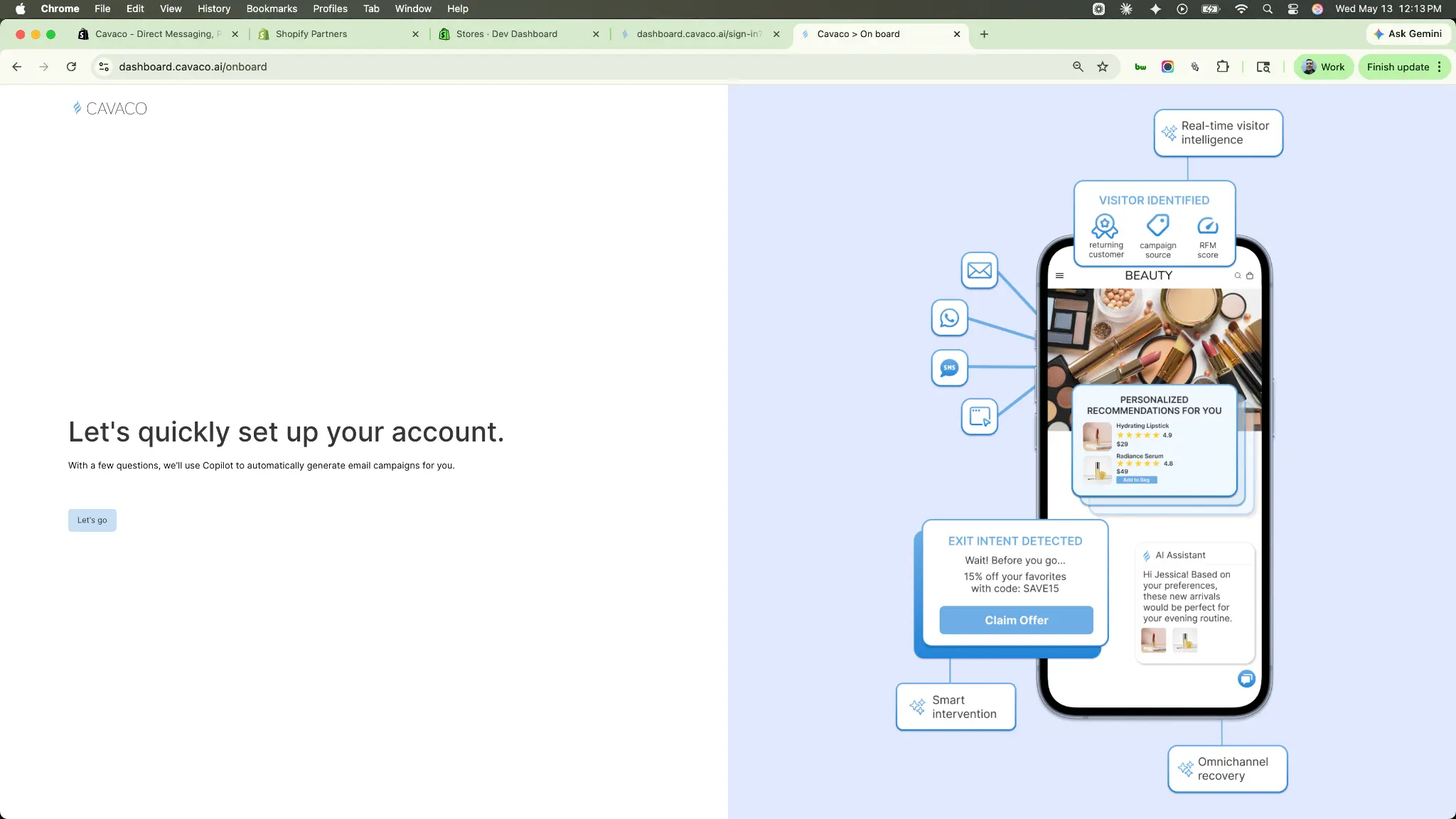
Step 3: Complete the Onboarding Wizard
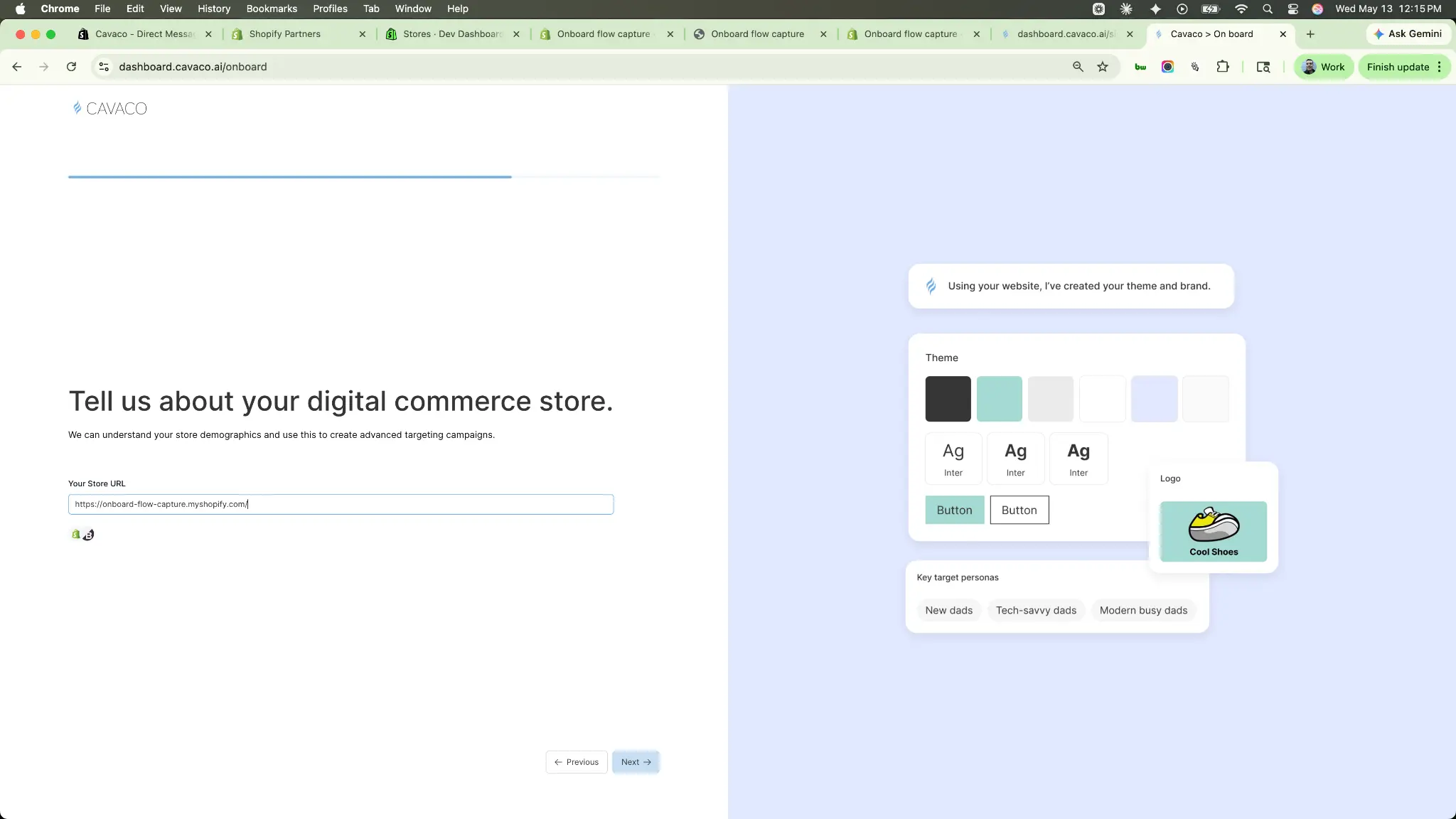
Once verified, you'll enter the Cavaco onboarding wizard. This quick process collects your company details, personal information, and your store URL.
When you enter your store URL, Cavaco AI automatically generates your brand theme, colors, fonts, logo, and target personas from your website in real time.
Step 4: Take the Feature Tour
Before jumping into the dashboard, Cavaco will give you a quick tour of its core features, including AI insights, email templates, widget builders, social automation, drip campaigns, the AI shopper bot, and analytics. This tour gives you a high-level overview of everything you can do with the platform.
Step 5: Connect Your Integration
After the tour, you will land on the Cavaco Dashboard home, where you'll see your "Complete Your Setup" checklist. Your Account Creation step is already complete.
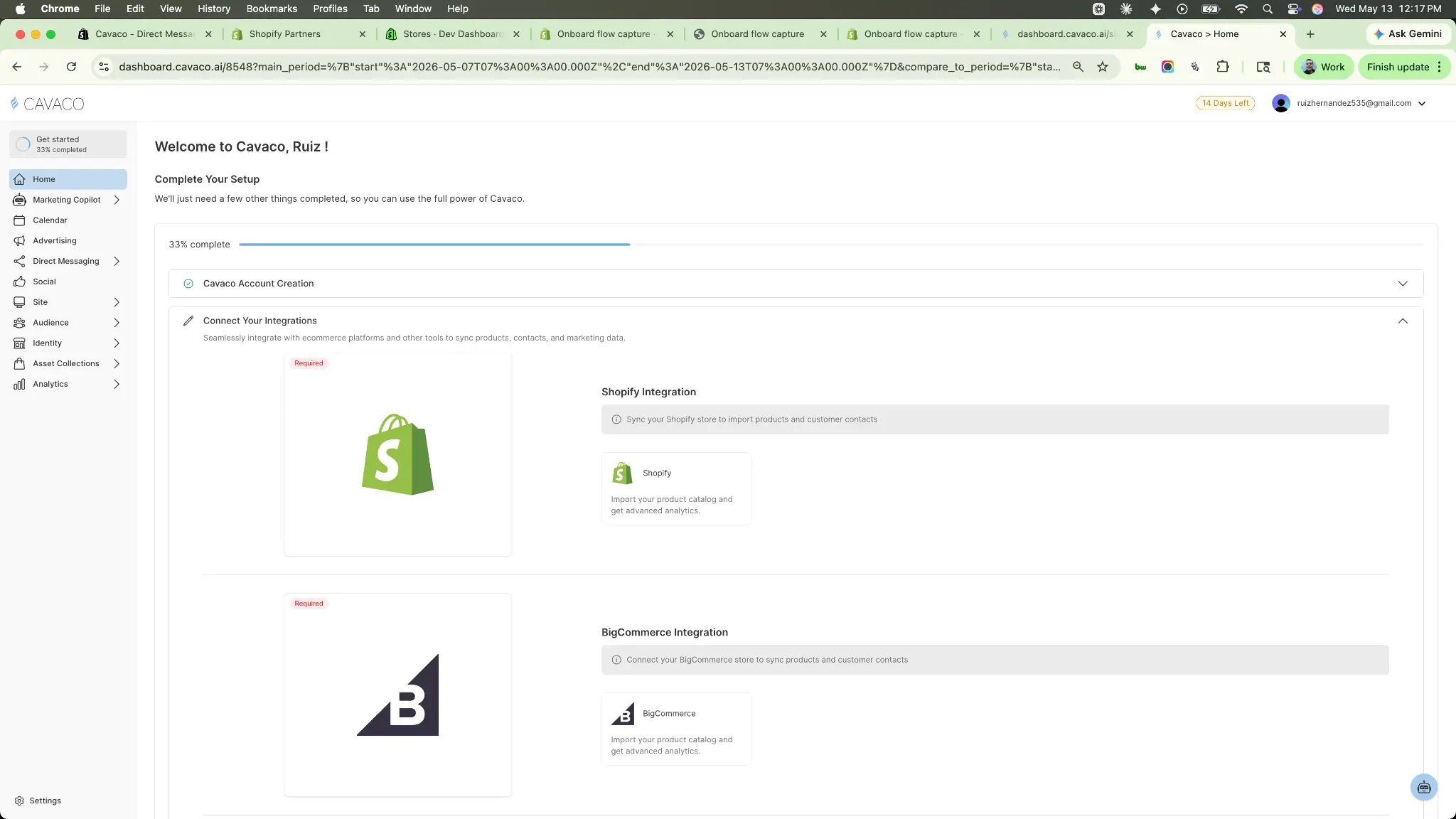
Click on Connect Your Integrations. Here you will see options for both Shopify and BigCommerce. Select your platform to begin the integration process.
- For Shopify: You will be redirected to the Shopify App Store to install the Cavaco app. Once installed, you will be redirected back to Cavaco.
- For BigCommerce: You will be redirected to the BigCommerce Marketplace to install the app. Once authorized, you will be redirected back to Cavaco.
Next Step: Return to the Main Getting Started Guide to walk through the rest of the onboarding checklist (Visual Theme, Brand Identity, and Domain Setup) and launch your first campaign.
.png)