.png)


Overview
Cavaco's BigCommerce integration connects your store's product catalog, order data, and customer profiles to power personalized campaigns and AI recommendations.
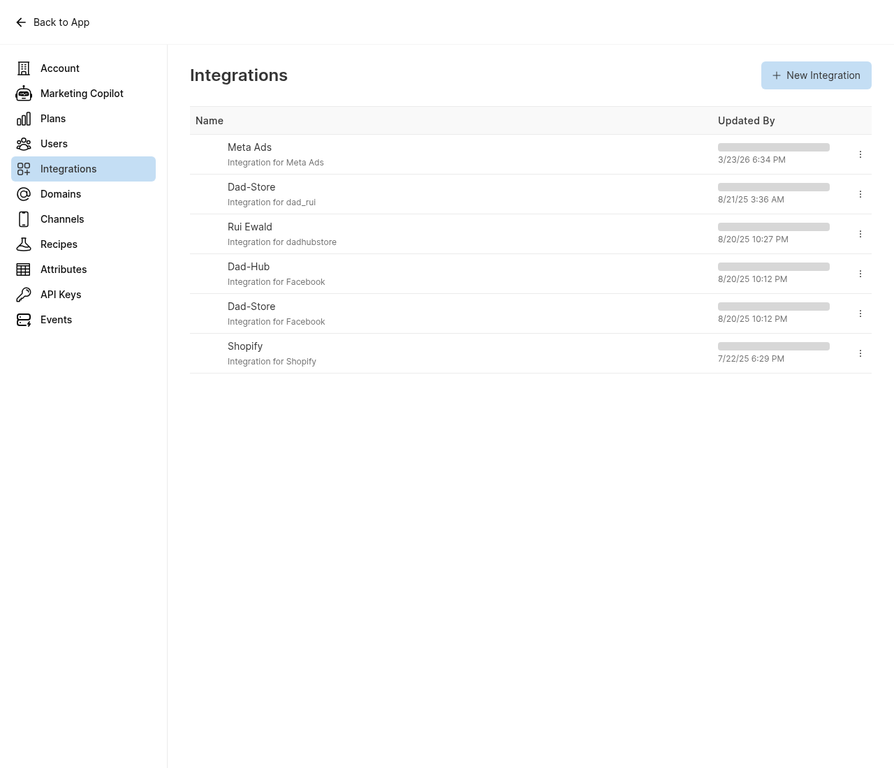
The Integrations page where you can add and manage your BigCommerce connection.
Connecting BigCommerce
- Navigate to Settings > Integrations and click New Integration
- Select BigCommerce from the platform list
- Enter your BigCommerce store URL and API credentials
- Cavaco will verify the connection and begin the initial data sync
Generating BigCommerce API Credentials
In BigCommerce admin, navigate to Advanced Settings > API Accounts > Create API Account. Set the following permissions: Products (Read-Only), Orders (Read-Only), Customers (Read-Only), and Store Information (Read-Only). Copy the Client ID, Client Secret, and Access Token into Cavaco's integration setup form.
Installing the Tracking Pixel
BigCommerce requires manual pixel installation. After connecting your store, navigate to Settings > Domains in Cavaco and copy your tracking pixel code. In BigCommerce, go to Storefront > Script Manager and add the pixel as a new script targeting all pages.
.png)